Workspaces & Members
A workspace holds your bots, workflows, vectors, credentials, and team. You can belong to several workspaces and switch between them with the workspace dropdown in the top-left corner of the builder.
Create a workspace
- Click the workspace dropdown (top-left).
- Click New workspace.
Notes:
- The number of workspaces you can create depends on your plan. When you reach the limit, the button shows a Locked badge and opens the upgrade dialog.
- Your oldest workspace is your "Main" workspace (marked with a blue Main tag). It cannot be deleted.
- Workspace names must be unique across your workspaces.
Workspace settings
Open the sidebar → Workspace Settings. If you are the workspace owner you'll see the Workspace tab:
- Icon — change or remove the workspace icon.
- Name — rename the workspace (max 50 characters).
- Workspace ID — a copyable ID, used when calling the Indite API.
- Start Tour — replay the guided onboarding tour.
- Danger Zone → Delete this workspace — permanently deletes the workspace and all its data. Only the owner can do this, and the Main workspace can never be deleted.
Roles: Admin, Member, Guest
| What you can do | Admin | Member | Guest |
|---|---|---|---|
| Manage workspace settings (name, icon, delete) | ✅ (owner for delete) | ❌ | ❌ |
| Invite / remove members, change roles | ✅ | ❌ (can view the list) | ❌ |
| See Billing & Usage | ✅ | ❌ | ❌ |
| Create / delete bots, workflows, vectors, folders | ✅ | ❌ | ❌ |
| Open and edit existing bots and workflows | ✅ | ✅ | Only the bots shared with them |
| Use workspace credentials in blocks | ✅ | ✅ | ✅ (cannot add or delete) |
Members are editors, not managers. A Member has full editing power inside any bot or workflow of the workspace, but cannot create or delete them, change workspace settings, or manage people.
Invite team members
Open the Members page
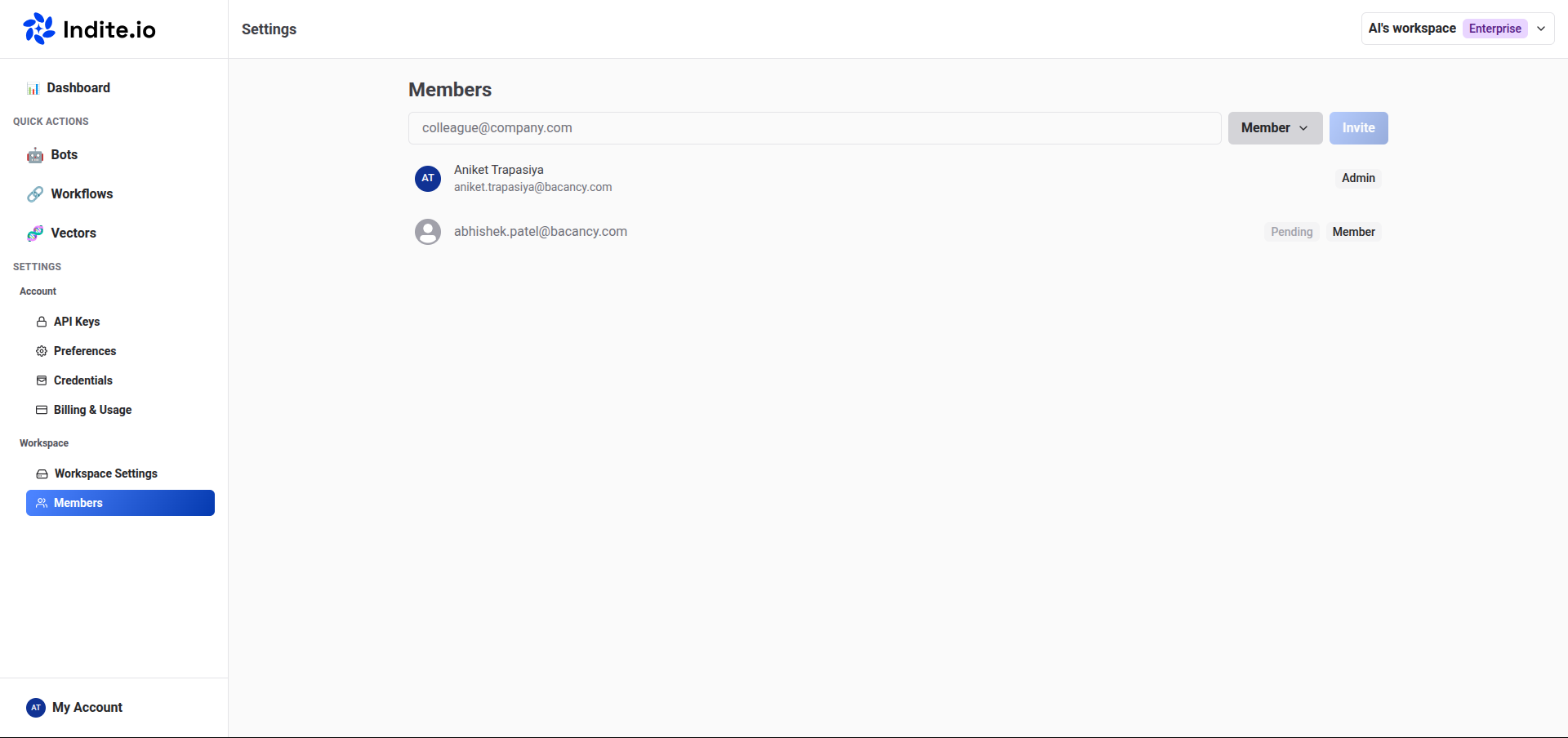
Sidebar → Workspace Settings → Invite Member tab. (Only Admins can invite.)
Enter the email and role
Type the person's email, choose Admin or Member from the dropdown, and click Invite.
What happens next
- If the person already has an Indite account, they are added to the workspace immediately.
- If they don't have an account yet, the invitation shows in the list with a grey pending tag until they sign up. Either way, they receive an invitation email with a link to the workspace.
To change someone's role or remove them, click their row in the members list and choose Admin, Member, or Remove. Pending invitations can be changed or deleted the same way.
Seat limits
The number of people in a workspace (members + pending invitations) is limited by the workspace owner's plan. When the limit is reached you'll see an upgrade banner and the invite form is locked. Some common messages:
- "Seats limit reached" — upgrade the plan or remove a member first.
- Inviting is also disabled while the workspace plan is expired.
Guests: share a single bot
Sometimes you want an external person (a client, a reviewer) to see one bot only — not your whole workspace. That's a Guest.
- Open the bot and click the Share button in the editor header.
- Enter their email and choose a permission:
- Can view — they can open the flow and results, but not edit.
- Can edit — they can also modify the flow.
- Click Invite.
Guests only see the bots they were invited to. When a guest is removed from their last shared bot, they automatically lose access to the workspace.
The Share popover also has a "Make the flow publicly available" toggle — this creates a read-only public link to the bot's flow that anyone can open, without an account.