Trello Action Block
What it does: Create, update, and manage Trello cards and boards automatically through your workflows.
In simple terms: Automate your Trello project management - create cards, add comments, retrieve card information, and create new boards.
When to Use This
Use the Trello action when you need to:
- ✅ Create tasks automatically from form submissions
- ✅ Get card details in your workflows
- ✅ List cards from specific lists
- ✅ Add comments with automated updates
- ✅ Update card information programmatically
- ✅ Create new boards dynamically
- ✅ Assign team members and set due dates
Example: When a bug report is submitted, automatically create a Trello card in your "Bug Queue" list with all the details, labels, and assigned team members.
Features
- Card Management: Create and update cards with full details
- Card Retrieval: Get card information and list cards from specific lists
- Comments: Add comments to cards automatically
- Labels: Apply labels using label IDs
- Members: Assign team members using member IDs
- Due Dates: Set deadlines for cards
- Board Creation: Create new boards programmatically
- Variable Support: Use workflow variables in all fields
- Response Mapping: Map Trello responses to workflow variables
Setup
1. Get Your Trello API Credentials
Get Your API Key
- Go to https://trello.com/power-ups/admin (opens in a new tab)
- Log in to your Trello account
- Click New to create a new Power-Up
- Give it a name (e.g., "Indite Workflow Integration")
- Copy your API Key - you'll need this
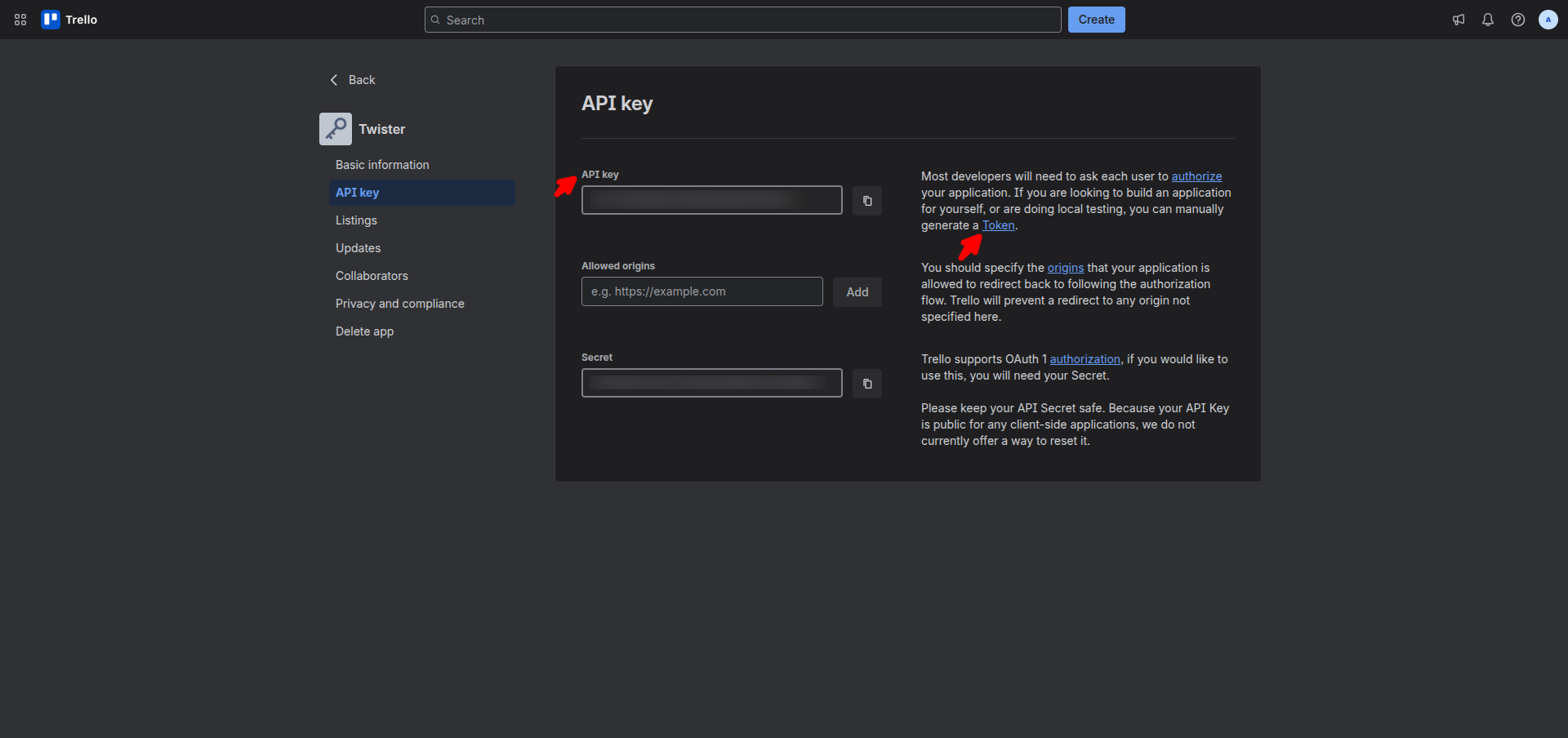
Generate Your API Token
- Visit:
https://trello.com/1/authorize?expiration=never&name=InditeWorkflow&scope=read,write&response_type=token&key=YOUR_API_KEY(ReplaceYOUR_API_KEYwith the key from step 1) - Click Allow to authorize the application
- Copy your API Token - you'll need this
Add Credentials to Indite
- In the Trello block, click Connect Trello Account
- Enter your API Key
- Enter your API Token
- Click Save
Important: Keep your API Key and Token secure. Never share them publicly or commit them to version control.
2. Select Action Type
Choose what you want to do:
- Create Card: Add a new card to a list
- Update Card: Modify an existing card
- Get Card: Retrieve card details
- List Cards: Get all cards from a list
- Add Comment: Post a comment on a card
- Create Board: Create a new Trello board
Creating Cards
Basic Settings
Board: Select the Trello board from dropdown
Your boards will be loaded automatically after connecting credentialsList: Choose the list where card will be created
Lists are loaded after selecting a board
To Do
In Progress
Done
Backlog
Card Name: Title of the card (required, supports variables)
New Task: `{{task.title}}`
Bug Report - `{{bug.id}}`
Feature Request from `{{user.name}}`
Card Description: Card details (optional, supports variables and Markdown)
**Issue**: `{{issue.description}}`

**Steps to Reproduce**:
1. `{{step1}}`
2. `{{step2}}`

**Reporter**: `{{reporter.name}}`
**Priority**: `{{priority}}`
Advanced Options
Labels: Comma-separated label IDs
label_id_1,label_id_2,label_id_3
`{{labelIds}}`Tip: To get label IDs, use the Get Card or List Cards action to see existing labels on cards, or check your board settings in Trello.
Members: Comma-separated member IDs to assign
member_id_1,member_id_2
`{{assigneeId}}`Tip: To get member IDs, check the member section when you get card details, or use Trello's API to list board members.
Due Date: Set a deadline (datetime-local format)
2024-12-31T17:00:00
`{{task.dueDate}}`Position: Where to place the card in the list
top = Add to top of list
bottom = Add to bottom of list (default)
Test Your Configuration
Use the Test Create Card button to verify your settings work correctly before deploying your workflow.
Updating Cards
To update an existing card:
- Select Update Card action
- Provide the Card ID (required)
- Optionally update name and/or description
Card ID: Trello card identifier (supports variables)
`{{trello.cardId}}`
6582a9f3d1234567890abcde
Card Name: New title for the card (optional)
[UPDATED] `{{task.title}}`Card Description: New description (optional)
**Updated**: `{{updateReason}}`

**Previous State**: `{{previousState}}`
**New State**: `{{newState}}`Note: Update Card only modifies the name and description. To update the list, use the listId parameter. Other fields like labels and members need separate API calls.
Getting Card Details
Retrieve information about a specific card:
- Select Get Card action
- Provide the Card ID
Card ID: Card to retrieve (supports variables)
`{{cardId}}`
`{{workflow.previousStep.cardId}}`
The response includes:
- Card name and description
- Current list
- Labels
- Members
- Due date
- Attachments
- Comments count
- And more
Listing Cards
Get all cards from a specific list:
- Select List Cards action
- Select Board
- Select List
Returns an array of all cards in that list with full details for each card.
Adding Comments
Post automated comments on cards:
Card ID: Target card (required, supports variables)
`{{trello.cardId}}`
`{{previousAction.cardId}}`
Comment Text: Message to post (required, supports variables and Markdown)
Status Update: `{{status}}`

Completed by: `{{user.name}}`
Time taken: `{{duration}}` hours

**Next Steps**: `{{nextSteps}}`Tip: Use Markdown formatting to make your automated comments more readable and structured!
Creating Boards
Create new Trello boards programmatically:
Board Name: Name for the new board (required, supports variables)
Project: `{{project.name}}`
`{{client.name}}` - Campaign Board
Sprint `{{sprintNumber}}` Planning
Board Description: Optional description (supports variables)
**Project**: `{{project.name}}`
**Start Date**: `{{startDate}}`
**Team**: `{{team.members}}`
**Goals**: `{{goals}}`
Test Your Configuration
Use the Test Create Board button to verify your settings before running the workflow.
Response Mapping
Map Trello API responses to workflow variables using JSONPath syntax:
Format: JSON object with variable names as keys and JSONPath expressions as values
{
  "cardId": "$.id",
  "cardUrl": "$.url",
  "shortUrl": "$.shortUrl",
  "boardId": "$.idBoard",
  "listId": "$.idList"
}
Available Response Fields (varies by action):
$.id- Card or board ID$.name- Card or board name$.desc- Description$.url- Full URL$.shortUrl- Short URL$.idBoard- Board ID$.idList- List ID$.due- Due date$.labels- Array of labels$.idMembers- Array of member IDs
Example Mappings:
{
  "newCardId": "$.id",
  "cardLink": "$.shortUrl",
  "assignedMembers": "$.idMembers"
}
Common Use Cases
1. Bug Tracking System
Trigger: Bug report form submitted Action: Create Card
Board: Bug Tracker
List: New Bugs
Name: [BUG] `{{bug.title}}`
Description:
  **Reported by**: `{{user.email}}`
  **Steps**: `{{bug.steps}}`
  **Expected**: `{{bug.expected}}`
  **Actual**: `{{bug.actual}}`
Labels: red_label_id (Bug)
Members: lead_developer_id
Due Date: `{{calculateDate(+3 days)}}`
Position: top
2. Lead Management
Trigger: New lead captured Action: Create Card
Board: Sales Pipeline
List: New Leads
Name: `{{lead.company}}` - `{{lead.name}}`
Description:
  **Email**: `{{lead.email}}`
  **Phone**: `{{lead.phone}}`
  **Interest**: `{{lead.interest}}`
  **Source**: `{{lead.source}}`
Labels: blue_label_id (New Lead)
Members: `{{salesRep.trelloId}}`
Due Date: `{{followUpDate}}`
3. Customer Support Tickets
Trigger: Support ticket created Action: Create Card + Add Comment workflow
Step 1 - Create Card:
  Board: Customer Support
  List: Open Tickets
  Name: Ticket #`{{ticket.id}}` - `{{ticket.subject}}`
  Description: `{{ticket.description}}`
  Labels: priority_label_id
  Members: `{{agent.trelloId}}`

Step 2 - Add Comment (if needed):
  Card ID: `{{step1.cardId}}`
  Comment: Assigned to `{{agent.name}}`. Priority: `{{ticket.priority}}`
4. Task Status Updates
Trigger: Task completed Actions: Update Card + Add Comment
Step 1 - Update Card:
  Card ID: `{{task.trelloId}}`
  Name: [COMPLETED] `{{task.name}}`

Step 2 - Add Comment:
  Card ID: `{{task.trelloId}}`
  Comment: Completed by `{{user.name}}` on `{{completionDate}}`
5. Project Board Creation
Trigger: New project approved Action: Create Board
Board Name: `{{project.name}}` - `{{project.year}}`
Board Description:
  **Client**: `{{project.client}}`
  **Budget**: `{{project.budget}}`
  **Timeline**: `{{project.startDate}}` to `{{project.endDate}}`
  **Team**: `{{project.team}}`
6. Card Information Retrieval
Trigger: Workflow needs card details Actions: Get Card or List Cards
Get Card:
  Card ID: `{{cardId}}`

List Cards:
  Board: Project Board
  List: In Progress

Use Response: Access card details in subsequent steps
Best Practices
Organization
- ✅ Use consistent naming conventions for cards (e.g., [BUG], [FEATURE], [TASK])
- ✅ Store label IDs and member IDs as workflow variables for reuse
- ✅ Use Test buttons to verify configurations before deployment
- ✅ Keep descriptions clear and well-structured with Markdown
- ✅ Set realistic due dates using date variables
Automation
- ✅ Get label IDs and member IDs first using Get Card or List Cards
- ✅ Use Response Mapping to capture card IDs for subsequent operations
- ✅ Chain actions: Create Card → Add Comment → Update as needed
- ✅ Use conditions to route cards to appropriate lists
- ✅ Validate required fields before creating cards
- ✅ Handle API errors gracefully with error blocks
Variables & Data
- ✅ Use workflow variables in all text fields for dynamic content
- ✅ Map response data to variables for use in later steps
- ✅ Store frequently used IDs (boards, lists, labels, members) as constants
- ✅ Format dates properly for due date field
- ✅ Join arrays with commas for labels and members fields
Performance
- ✅ Cache board and list data to minimize API calls
- ✅ Use Get Card sparingly - only when you need fresh data
- ✅ Batch operations when possible using workflows
- ✅ Handle rate limits with retry logic
- ✅ Monitor API usage in your Trello Power-Up settings
Troubleshooting
Card Not Created
Check:
- ✅ Trello credentials (API Key and Token) are correct
- ✅ Board and list exist and IDs are valid
- ✅ You have write permissions on the board
- ✅ Card name is provided (required field)
- ✅ API rate limits not exceeded
- ✅ Network connectivity is stable
Solution: Use Test Create Card button to verify configuration
Members or Labels Not Applied
Issue: Labels or members don't appear on created card
Solutions:
- ✅ Verify you're using label IDs (not names or colors)
- ✅ Verify you're using member IDs (not names or emails)
- ✅ Use Get Card on an existing card to see correct ID formats
- ✅ Ensure members have access to the board
- ✅ Check that labels exist on the selected board
- ✅ Use comma-separated format:
id1,id2,id3
Comments Not Posting
Check:
- ✅ Card ID is valid and card exists
- ✅ Comment text is not empty
- ✅ API credentials have write permissions
- ✅ Markdown formatting doesn't break the comment
Solution: Test with a simple text comment first, then add formatting
Board/List Not Loading
Issue: Dropdowns don't populate with boards or lists
Solutions:
- ✅ Verify credentials are saved correctly
- ✅ Refresh the page to reload boards
- ✅ Check that you have at least one board in Trello
- ✅ Ensure API token hasn't expired
- ✅ Check browser console for API errors
Response Mapping Not Working
Check:
- ✅ JSON syntax is valid (use a JSON validator)
- ✅ JSONPath expressions are correct (use
$.prefix) - ✅ Field names in response match your paths
- ✅ Variable names don't have spaces or special characters
Example Valid Mapping:
{
  "cardId": "$.id",
  "url": "$.shortUrl"
}
Limitations
- API Rate Limit: 300 requests per 10 seconds per API key
- Token Expiration: Tokens can expire - use "never" expiration when generating
- Board Access: Can only access boards you're a member of
- Label/Member IDs: Must use IDs, not names - requires initial lookup
- File Attachments: Not supported in current implementation
- Checklists: Not supported in current implementation
- Card Moving: Use Update Card with listId parameter instead
- Batch Operations: Must create one card at a time per action
Rate Limiting: Respect Trello's rate limits. For bulk operations, add delays between actions or use Trello's batch endpoints.
API Credential Security
Security Best Practices:
- Never share your API Key or Token
- Don't commit credentials to version control
- Use environment variables for sensitive data
- Regenerate tokens if compromised
- Limit token scopes to only required permissions
- Regularly audit API usage in Trello Power-Ups
Example Workflow
Flow Explanation:
- Form is submitted with bug/task details
- Check priority level
- Create card in appropriate list based on priority
- Apply corresponding priority label
- Assign team members based on priority
- Set due date based on priority
- Add automated comment with details
- Workflow completes successfully
Related Blocks
- Condition: Route cards to different boards/lists based on criteria
- HTTP Request: Make custom Trello API calls not covered by this block
- Send Email: Notify team when cards are created
- Set Variable: Prepare and format data before card creation
- Loop: Create multiple cards from an array of items
- Get Card: Retrieve card details for conditional logic
Need Help?
Resources
- Trello API Documentation (opens in a new tab)
- Get Your API Key (opens in a new tab)
- Trello Developer Portal (opens in a new tab)
- JSONPath Syntax Guide (opens in a new tab)
Common Questions
Q: How do I find label and member IDs? A: Use the Get Card action on an existing card, or List Cards, to see all IDs in the response.
Q: Can I attach files to cards? A: File attachments are not currently supported. You can add file URLs in the description.
Q: How do I move cards between lists? A: Use Update Card action with the listId parameter, or make a custom HTTP request to Trello's API.
Q: Can I create cards in multiple boards? A: Yes, but you need separate Create Card actions for each board.
Q: Do I need a Trello Power-Up? A: Yes, you need to create a Power-Up to get your API Key. It's free and takes 2 minutes.
Pro Tip: Create a "Test Board" in Trello where you can safely test your workflows and get familiar with label/member IDs before deploying to production boards!