Export / Import a Workflow
The Export/Import feature in the Indite builder allows you to save your workflows as JSON files for backup, sharing, or reuse, and to import them into new projects seamlessly. This functionality enhances workflow management and collaboration.
Tip: Use export/import to maintain version control or transfer workflows between teams.
How to Export/Import
Exporting a Workflow
To export a workflow to a JSON file, follow these steps:
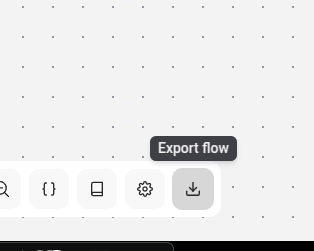
- Access the Menu: Click the menu button located at the top right of the Flow Editor.
- Select Export: Choose the "Export" option to download the workflow as a JSON file.
- Save the File: Store the downloaded file in a secure location for future use.
Importing a Workflow
To import a previously exported workflow, follow these steps:
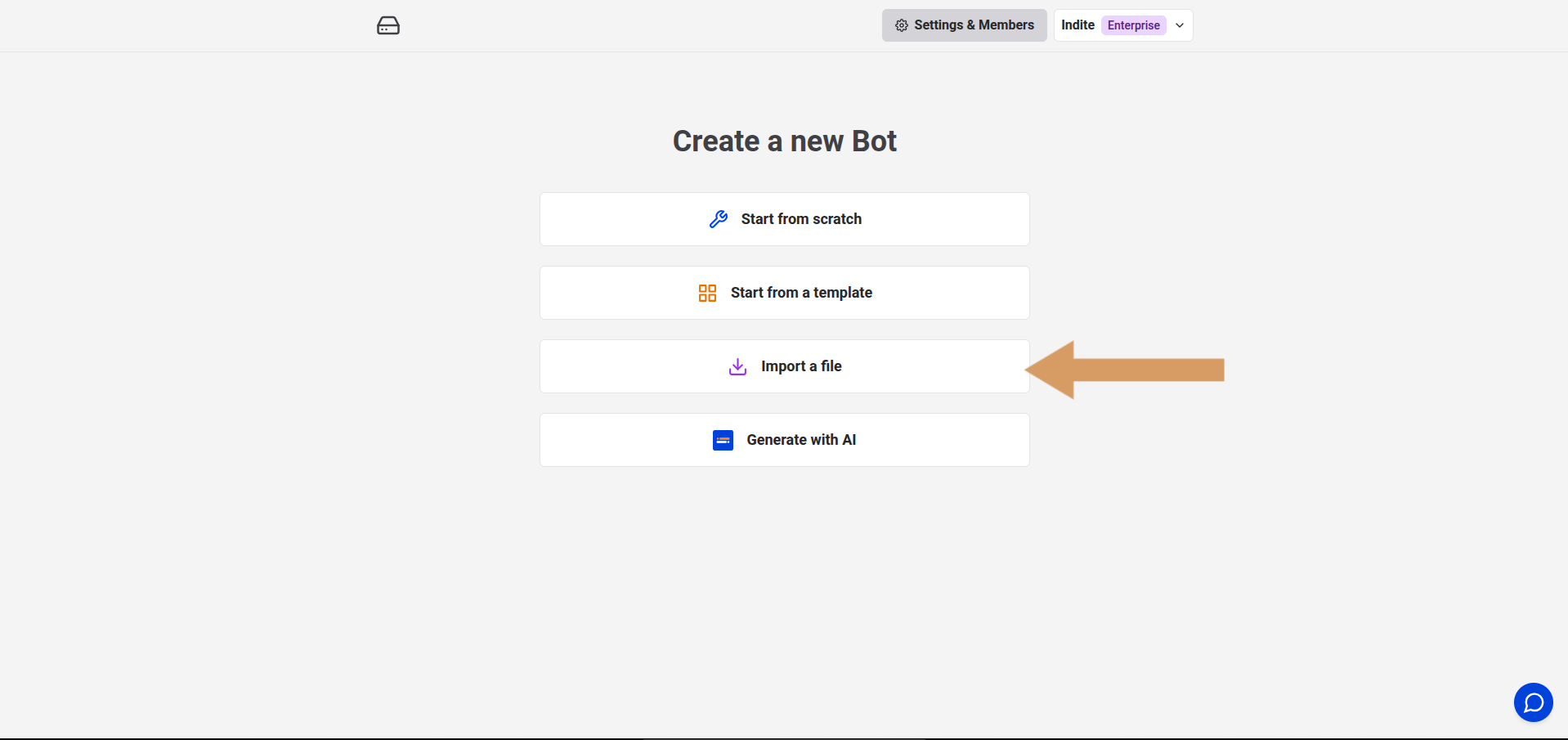
- Start a New Workflow: Navigate to the Flow Editor and select "Create New Workflow".
- Choose Import: Click "Import a File" and upload the saved JSON file.
- Confirm Import: Review the imported workflow and save your changes.
⚠️
Caution: Ensure the JSON file is from a trusted source to avoid importing corrupted or malicious data.
Best Practices
- File Naming: Use descriptive names (e.g.,
workflow_backup_20251013.json) to track versions easily. - Regular Backups: Export workflows periodically to prevent data loss.
- Version Control: Maintain a history of exported files to revert to previous versions if needed.
- Test Imports: Validate imported workflows in preview mode before deploying.