Condition Block
What it does: Makes your workflow choose different paths based on rules you set.
In simple terms: Like a fork in the road. "If this is true, go left. If not, go right."
When to Use This
Use conditions when you need to make decisions:
- ✅ Send different emails to different user types
- ✅ Process orders differently based on price
- ✅ Route urgent requests to a special team
- ✅ Show different content based on user location
Example: If customer spent over $100, send premium discount. Otherwise, send regular discount.
How It Works
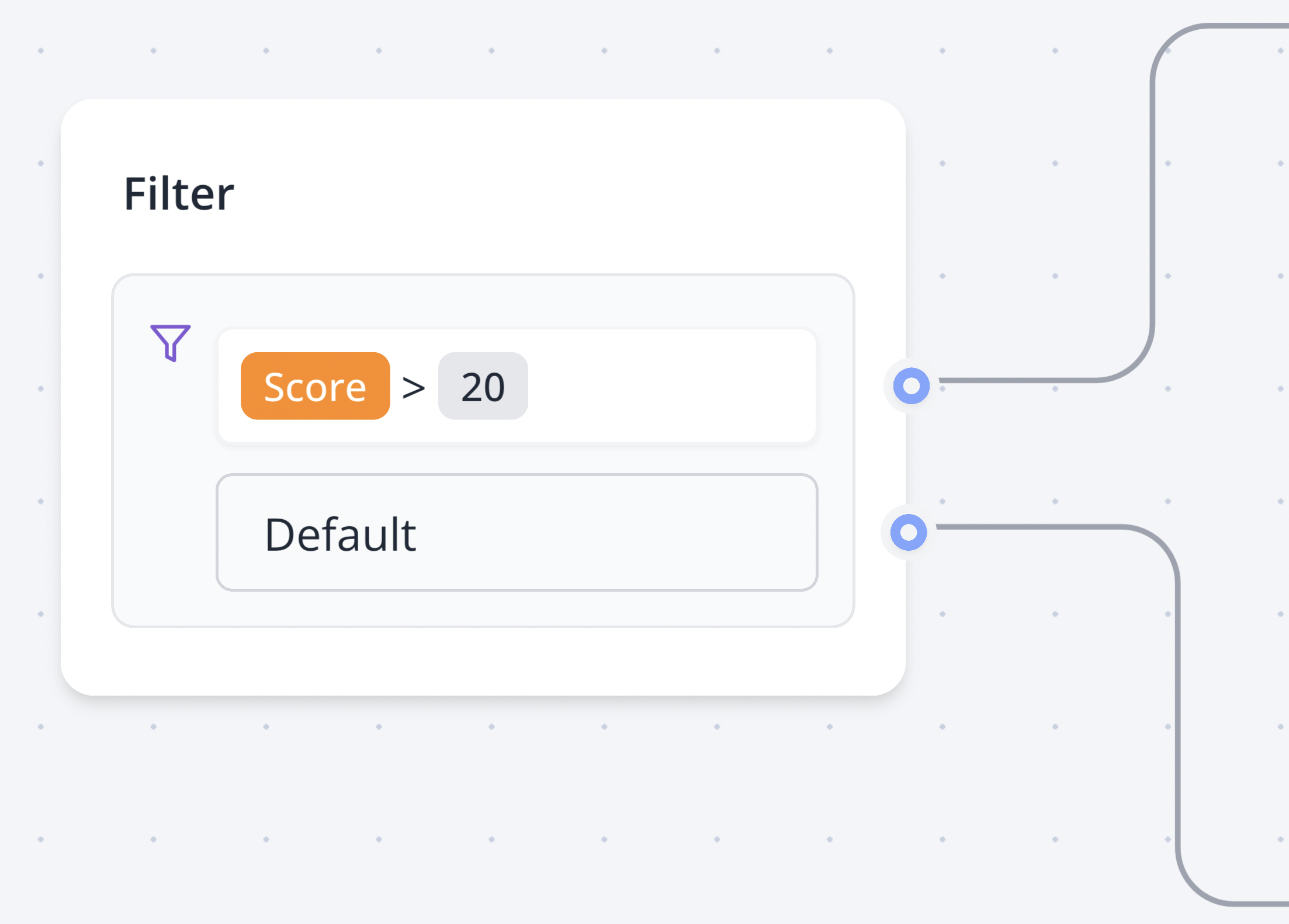
- Check a value (like age, price, name)
- Compare it using a rule
- If true → follow one path
- If false → follow another path
Simple Rules You Can Use
Equal to (=)
Checks if two things are exactly the same.
- Example: If country equals "USA"
- Use when: You need exact matches
Not equal to (≠)
Checks if two things are different.
- Example: If status not equals "cancelled"
- Use when: You want to exclude something specific
Contains
Checks if text includes certain words.
- Example: If email contains "@gmail.com"
- Use when: You're searching within text
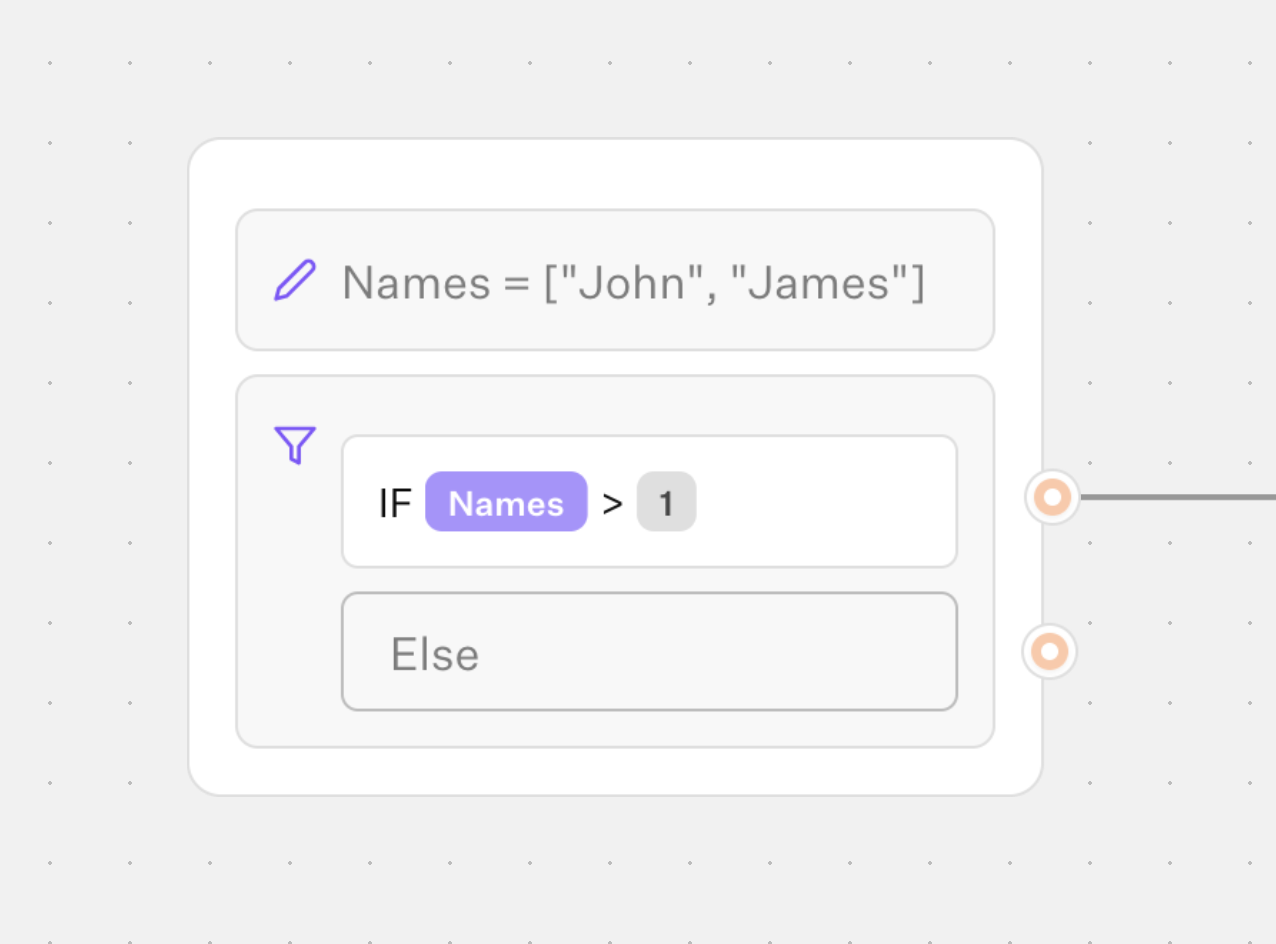
Greater than (>)
Checks if a number is bigger.
- Example: If age greater than 18
- Use when: Working with numbers, prices, ages
Less than (<)
Checks if a number is smaller.
- Example: If price less than 50
- Use when: Setting limits or thresholds
Is set / Has value
Checks if something exists (not empty).
- Example: If phone number is set
- Use when: Checking if user provided information
Is empty
Checks if something is blank or missing.
- Example: If middle name is empty
- Use when: Finding missing information
Starts with
Checks how text begins.
- Example: If phone starts with "+1"
- Use when: Checking prefixes or codes
Ends with
Checks how text finishes.
- Example: If file ends with ".pdf"
- Use when: Checking file types or suffixes
Real-World Examples
Example 1: Age Check
If age > 18
  → Send adult content
Otherwise
  → Send family-friendly content
Example 2: VIP Customer
If total purchases > 1000
  → Add to VIP list
  → Send special discount
Otherwise
  → Send regular newsletter
Example 3: Form Validation
If email is empty
  → Show error message
Otherwise
  → Continue to next step
Setting Up a Condition
Step 1: Choose What to Check
Select the data you want to check (like "age", "price", "email")
Step 2: Pick Your Rule
Choose how to compare it (equals, greater than, contains, etc.)
Step 3: Set the Value
Enter what you're comparing against (like "18", "premium", "100")
Step 4: Connect Both Paths
- Connect blocks to "True" path (what happens if condition passes)
- Connect blocks to "False" path (what happens if condition fails)
Important: Always connect BOTH paths! If you only connect one, some cases will have nowhere to go.
Tips for Success
- Keep it simple: Use one rule per condition block
- Name clearly: Give your condition a clear name like "Check if VIP"
- Test both paths: Make sure both true and false paths work correctly
- Use multiple conditions: For complex logic, use multiple condition blocks in sequence
Common Mistakes
❌ Comparing wrong types: Don't compare "10" (text) with 10 (number) ✅ Solution: Make sure both sides are the same type
❌ Forgetting empty cases: Not checking if data exists first ✅ Solution: Use "Is set" first to check if data exists
❌ Complex conditions: Trying to check too many things at once ✅ Solution: Use multiple condition blocks for complex logic
Pro Tip: Test your condition with different values to make sure it works in all scenarios!
Next Steps
- Try combining multiple conditions for complex logic
- Learn about Variables to store decision results
- Explore Script block for advanced conditions