Send Email
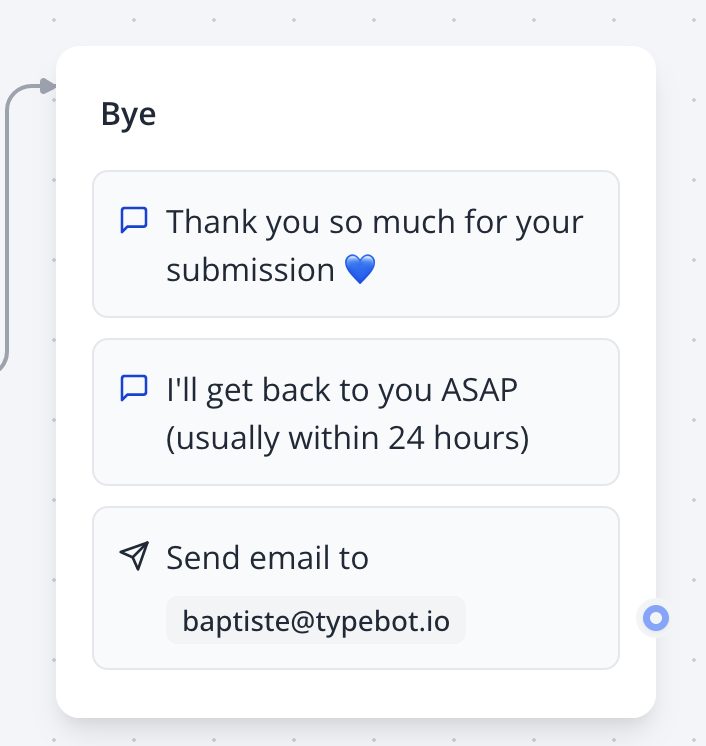
The Send Email block enables you to send automated email notifications or recaps as part of your workflow. Whether you want to notify users when a workflow completes or share a summary of results, this block simplifies email integration with customizable content and attachments.
Tip: Use the Send Email block to keep users informed about workflow progress or deliver personalized summaries directly to their inbox.
Configuration
SMTP Setup (Free Plan)
If you’re using the Free plan, you’ll need to configure your own SMTP account to prevent spam and ensure secure email delivery. Several SMTP providers offer generous free tiers, including:
When to Use Send Email
To set up your SMTP account:
- Obtain Credentials: Sign up with an SMTP provider and retrieve your SMTP server details (host, port, username, and password).
- Configure in Workflow: Enter these credentials in the Send Email block settings to enable email sending.
Caution: Ensure your SMTP credentials are correct and secure to avoid delivery issues or unauthorized access.
For users on a Paid Plan, emails can be sent directly from support@indite.io without additional SMTP configuration.
Email Content
Craft custom email content using plain text or HTML to suit your needs:
- Subject Line: Define a clear, dynamic subject using variables, e.g.,
{{variables.workflowName}} Completed. - Body: Write custom text or HTML content. Use variables to personalize the email, such as
{{variables.userName}}or{{variables.resultSummary}}.
<h1>Workflow Completed</h1>
<p>Hi {{variables.userName}},</p>
<p>Your workflow <strong>{{variables.workflowName}}</strong> has finished. Here’s a summary:</p>
<ul>
  <li>Status: {{variables.status}}</li>
  <li>Details: {{variables.resultSummary}}</li>
</ul>
<p>Thank you for using our platform!</p>
Attachments
Attach files to your emails using the Attachments option:
- Link to File Upload: Connect the attachment field to a variable from a File Upload input block in your workflow.
- Supported Formats: Ensure files are in supported formats (e.g., PDF, PNG, CSV) and within size limits set by your SMTP provider.
Best Practice: Test attachments in preview mode to confirm they are correctly linked and delivered with the email.
Usage Example
To send a notification when a workflow completes:
{
  "to": "{{variables.userEmail}}",
  "subject": "Workflow {{variables.workflowName}} Completed",
  "body": "<p>Hi {{variables.userName}},</p><p>Your workflow has successfully completed. Results: {{variables.resultSummary}}</p>",
  "attachments": "{{variables.uploadedFile}}",
  "smtp": {
    "host": "smtp.provider.com",
    "port": 587,
    "username": "{{env.SMTP_USERNAME}}",
    "password": "{{env.SMTP_PASSWORD}}"
  }
}
Best Practices
- Personalize Content: Use variables to tailor emails to specific users or workflow outcomes.
- Test Deliverability: Send test emails to verify SMTP settings and content rendering.
- Monitor Limits: Be aware of your SMTP provider’s sending limits, especially on free tiers.
- Secure Credentials: Store SMTP credentials securely using environment variables.
Troubleshooting
If emails aren’t reaching the inbox:
- Check Logs: Review the workflow logs for error details.
- Verify SMTP Settings: Ensure the host, port, username, and password are correct.
- Inspect Spam/Junk Folders: Emails may be filtered by the recipient’s email client.
- Test Connectivity: Confirm your SMTP provider’s server is accessible and not blocking your requests.
Need Help? If you’re still facing issues, reach out via the in-tool chat button for support.
Integration with Workflow Blocks
Combine the Send Email block with:
- Variable Blocks: Inject dynamic data like user details or results into emails.
- Condition Blocks: Trigger emails based on specific workflow conditions.
- File Upload Blocks: Attach user-uploaded files to emails.
- HTTP Blocks: Log email events to external systems.