Embedding Your Bot in WordPress
Integrate your bot into your WordPress site effortlessly using the Indite Bot WordPress Plugin (opens in a new tab). This plugin simplifies the embedding process for Standard, Popup, or Bubble integrations.
Before proceeding, ensure you have created and published a bot in your Indite dashboard.
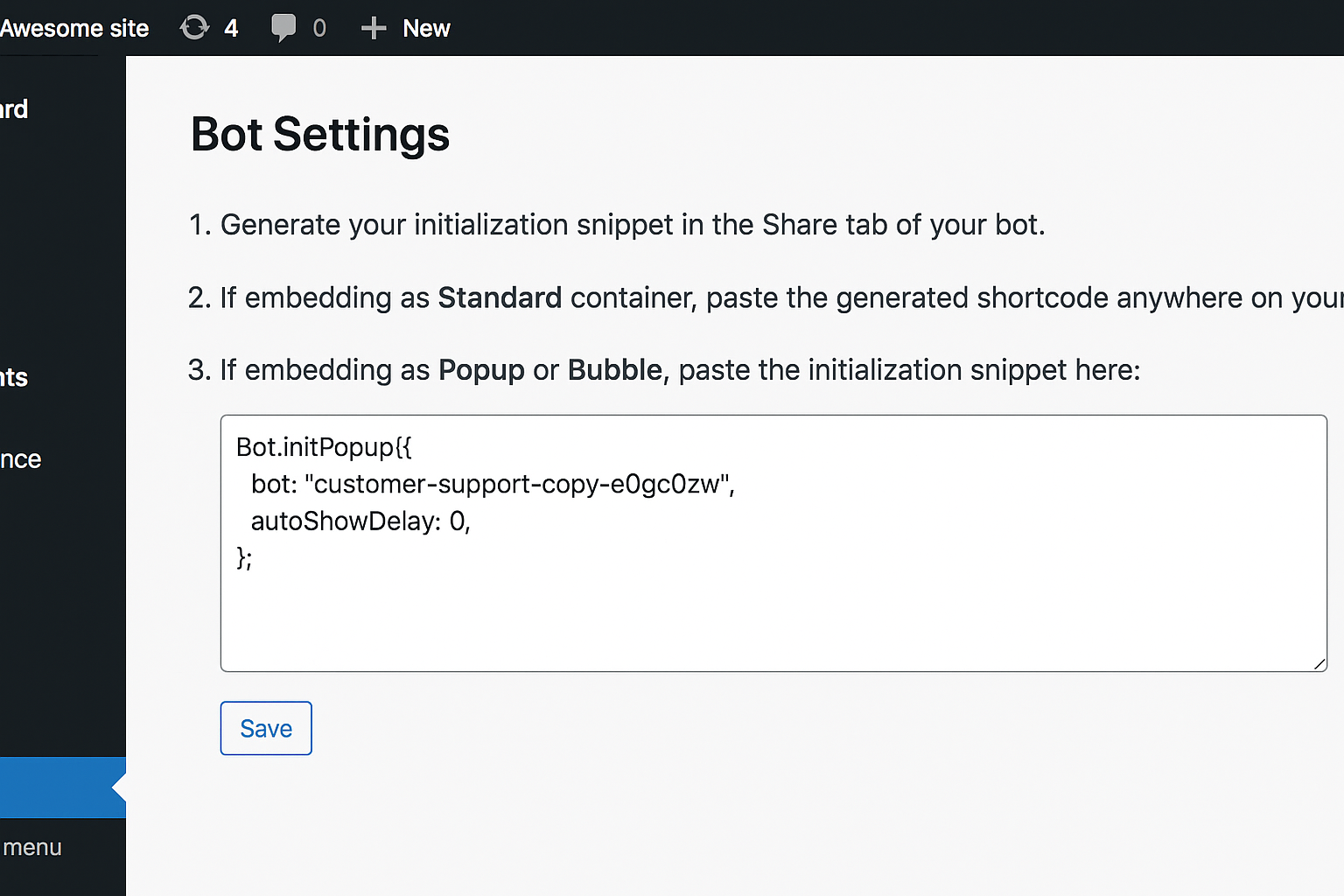
Getting Started
-
Install the Plugin:
- Download and install the Indite Bot WordPress Plugin (opens in a new tab) from the WordPress Plugin Directory.
- Activate the plugin in your WordPress dashboard.
-
Obtain the Embed Code:
- Navigate to the Share tab in your bot’s Indite dashboard.
- Click the WordPress button to copy the embed code or configuration details.
- Follow the plugin’s instructions to add the bot to your site.
Ensure the bot ID in the plugin configuration matches your bot’s unique ID, found in the Share tab.
Configuring Excluded Pages
Control where your bot appears by specifying excluded pages in the plugin settings. Use a comma-separated list to define pages where the bot should not display.
Examples:
/app/*: Excludes all pages starting with/app/./app: Excludes only the/apppage./app?param=1: Excludes the/apppage with the query parameterparam=1./app?param=*: Excludes the/apppage with any value for theparamquery parameter./app/*?param=*: Excludes all pages starting with/app/with any value for theparamquery parameter.
Enter the excluded pages in the plugin’s settings to prevent the bot from appearing on specific pages or sections of your site.
Personalizing the User Experience
Enhance the bot experience by prefilling variables with user-specific data from WordPress. These variables allow you to customize the bot’s behavior based on user context.
Available WordPress Variables:
- Ensure variables in your bot match the exact syntax provided by the plugin (e.g.,
WP Email, notwp EmailorWP email).
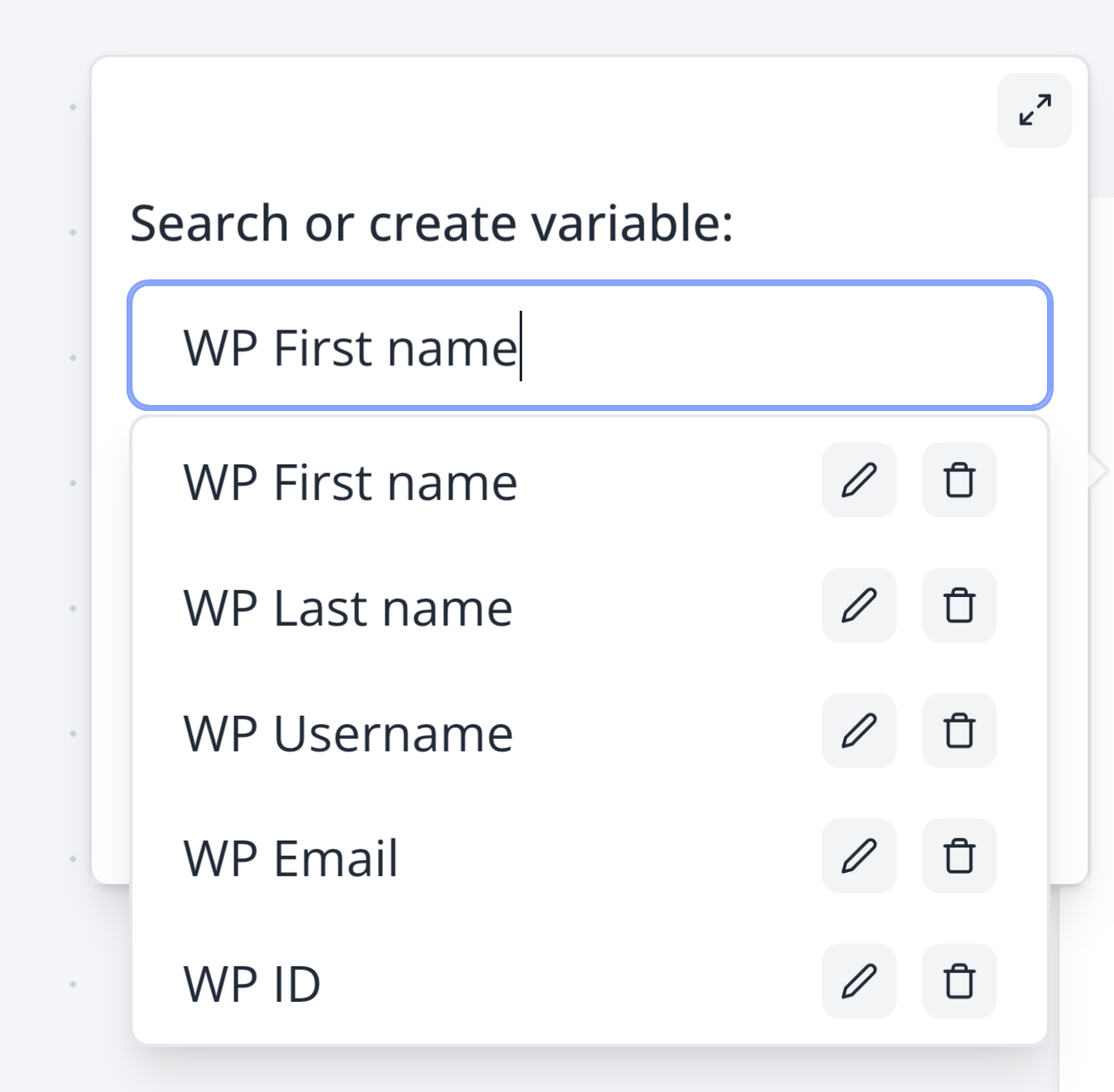
Steps to Enable:
- Install and activate the Indite Bot WordPress Plugin (opens in a new tab).
- Create variables in your bot’s variables dropdown (in the Indite dashboard) using the exact syntax (e.g.,
WP Email,WP User Name). - The plugin will automatically inject these variables into your bot.
Variable names are case-sensitive. For example, WP Email will work, but wp Email will not.
Troubleshooting Common Issues
If your bot isn’t displaying on your WordPress site, check the following:
LiteSpeed Cache with "Localise Resources" Enabled
- If LiteSpeed’s "Localise Resources" feature is enabled, ensure
https://cdn.jsdelivr.netis removed from the localized URLs list, as it’s used to load the bot’s embed library.
LiteSpeed Cache with JS Optimization
- In LiteSpeed Cache’s Tuning Settings, add
web.jsandbotto the JS Excludes and JS Deferred Excludes fields to prevent caching issues.
WP Rocket or Other Caching Plugins
- For WP Rocket:
- Navigate to Settings > WP Rocket > Advanced Rules > Excluded Inline JavaScript.
- Add
botto the excluded scripts list. - Save changes.
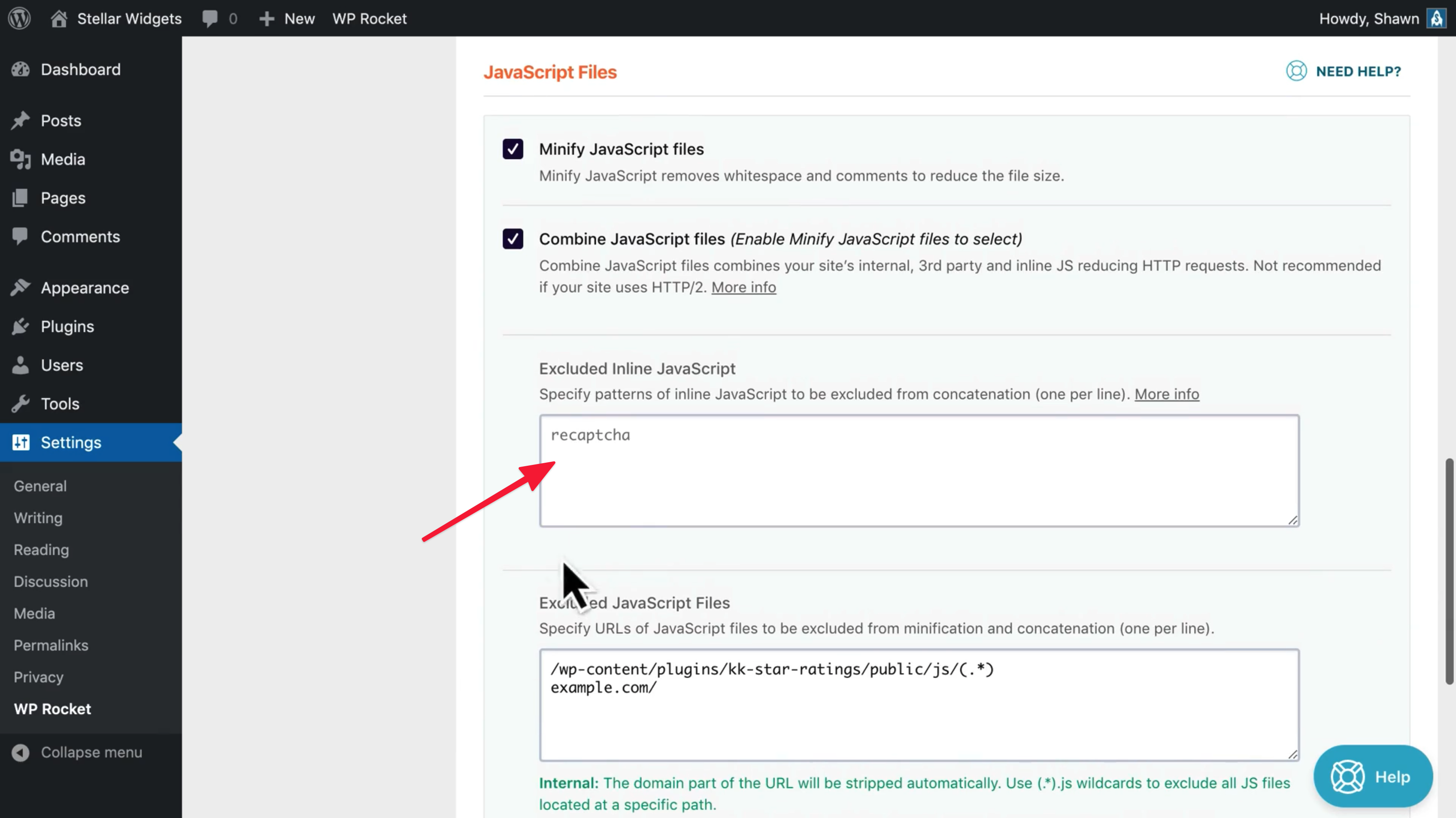
Plugins Adding defer to External Scripts
- If a plugin adds the
deferattribute to external scripts, configure an exception for the bot’s scripts (e.g.,web.jsorbot) in the plugin’s settings.
Still Not Working?
- Contact support directly through the bot in the bottom-right corner of the Indite application.