Deploy your bot on WhatsApp to engage users directly through their preferred messaging platform. This guide covers testing, deploying, and configuring your bot for WhatsApp, along with limitations, personalization options, and troubleshooting tips.
Testing Your Bot
Preview and test your bot in the Indite editor by following these steps:
- Click the Test button in the editor.
- In the preview panel, select WhatsApp as the runtime environment.
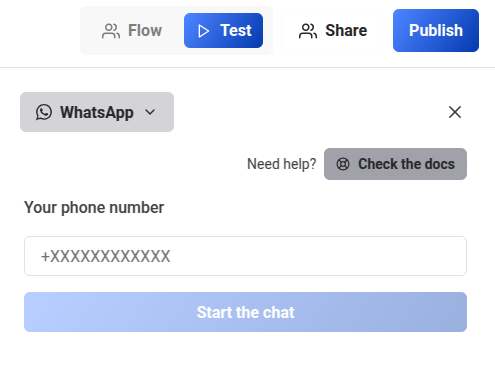
Ensure the phone number used for testing matches the one in your WhatsApp profile settings to receive preview messages.
Deploying on Your Phone Number
To deploy your bot on WhatsApp:
- Navigate to the Share tab in your bot’s Indite dashboard.
- Click the WhatsApp button to access integration instructions.
- Follow the prompts to connect your bot to a WhatsApp phone number via a Meta app. Refer to the Create a Facebook Meta App Guide for setup details.
Configuring WhatsApp Integration
Customize your bot’s behavior on WhatsApp in the Configure Integration section of the Share tab.
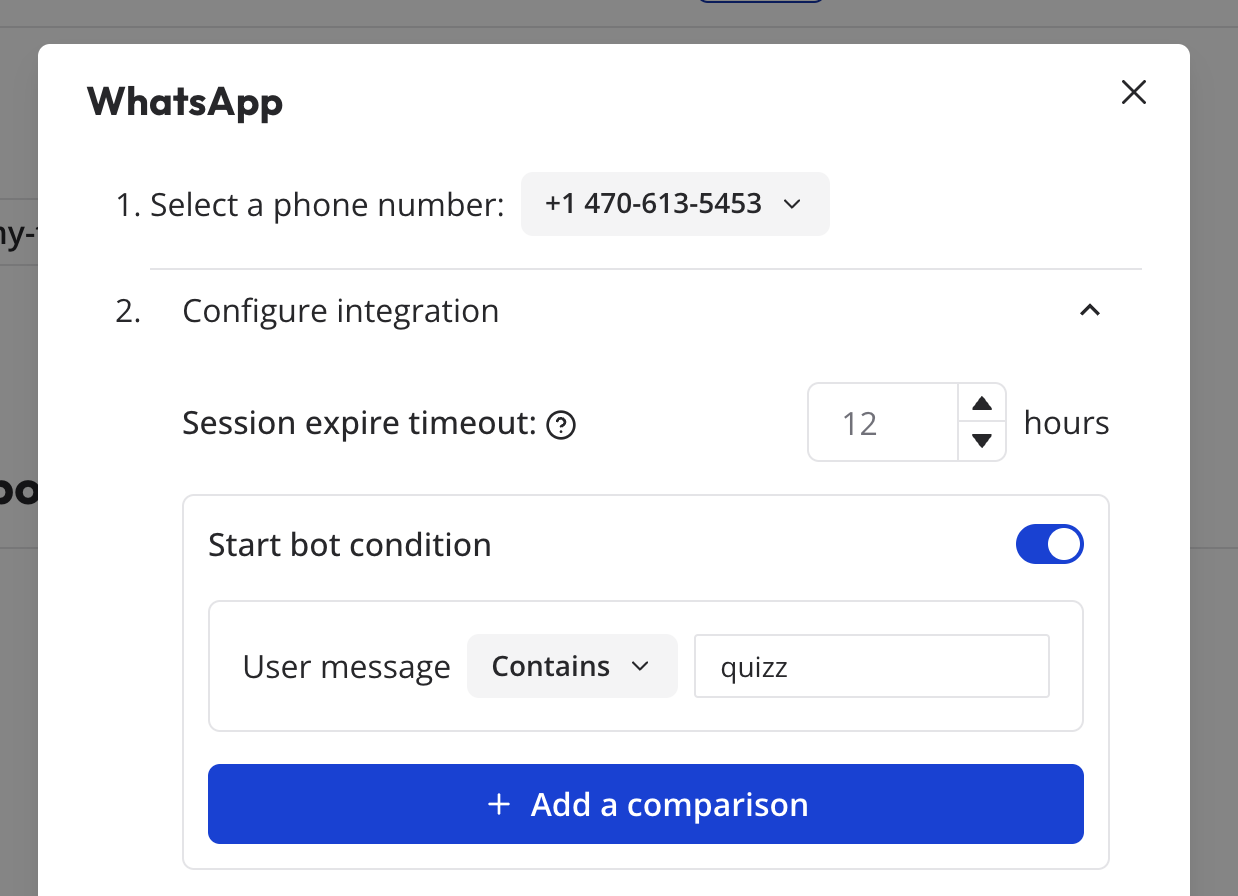
Configuration Options
- Session Expiration Timeout: Set a duration (0–48 hours) after which the chat session expires if the user stops interacting. A new conversation starts if the user sends a message after expiration. Default is 4 hours.
- Start Bot Condition: Define a condition to trigger the bot when a user initiates a conversation. If the condition isn’t met, the bot won’t respond.
Use start conditions to route conversations to specific bots when multiple bots are linked to the same WhatsApp number.
Personalizing with Contact Information
Automatically capture the user’s name and phone number using a Set Variable block with WhatsApp system variables.
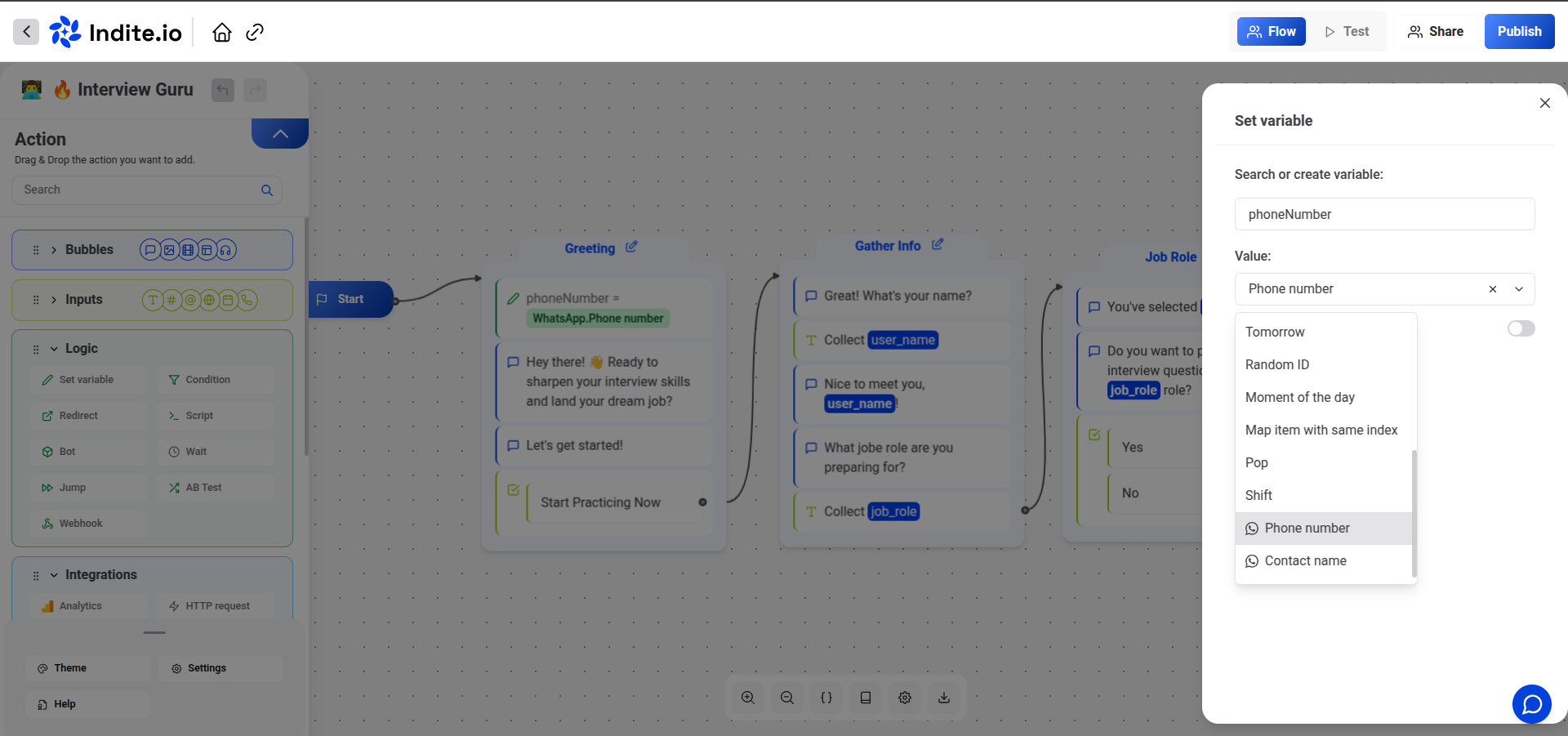
Create variables in your bot (e.g., Contact Name, Contact Phone) to store WhatsApp-provided user data for personalized interactions.
Collecting User Location
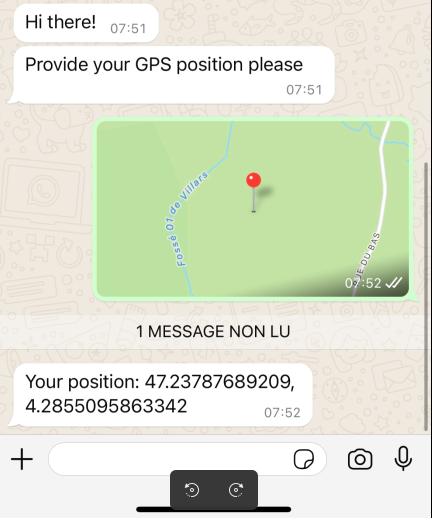
Request the user’s location using a Text Input block. The location is saved as a variable in the format <latitude>, <longitude>.
Flow Editor Example
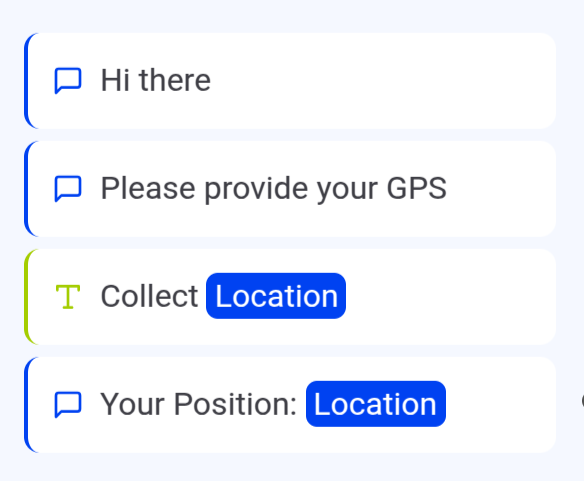
Bot Preview Example
WhatsApp Limitations
When building your bot for WhatsApp, keep these limitations in mind:
- Media Support:
- GIF and SVG images are not supported and won’t display.
- Only
.mp4videos are supported. See WhatsApp Supported Media Types (opens in a new tab) for details.
- Button Limits:
- Maximum of 3 buttons can be displayed at a time. Additional buttons are shown via a "..." message.
- Card input blocks are limited to 3 buttons per card.
- Button text is truncated to 20 characters.
- Incompatible Blocks (skipped during execution):
- Payment Input block
- Chatwoot block
- Script or Set Variable block with
Execute on clientenabled - Google Analytics block
- Meta Pixel block
- Cal.com block
Test your bot thoroughly in WhatsApp’s runtime to ensure compatibility with these limitations.
FAQ
How many WhatsApp numbers can I use?
You can integrate multiple WhatsApp numbers with your bots. Indite operates on a "Bring Your Own Meta Application" model. Follow the Create a Facebook Meta App Guide to set up your Meta app.
Can I link multiple bots to the same WhatsApp number?
Yes, you can link multiple bots to a single WhatsApp number. Use a unique Start Bot Condition for each bot to ensure the correct bot is triggered based on the user’s message.
Does the WhatsApp integration require a paid API?
The integration uses the WhatsApp Business Platform, an official Meta service. The first 1,000 service conversations per month are free. For pricing details, refer to the WhatsApp Business Platform Documentation (opens in a new tab).
Troubleshooting
Bot Doesn’t Respond After Initial Preview Message
If you receive the initial preview message but the bot doesn’t respond:
- Verify Phone Number: Ensure the phone number in your Indite dashboard matches the one in your WhatsApp profile settings. For example, in Brazil, some users have 8- or 9-digit numbers—use the number displayed in WhatsApp’s settings.
- Check Terms of Service: Accept WhatsApp’s latest Terms of Service.
- Update WhatsApp: Ensure you’re using the latest version of the WhatsApp app.
- Test Number: Send a test message to Indite’s business phone number (+33 7 56 95 36 64) to confirm connectivity.
No Initial Preview Message Received
If the preview message isn’t received:
- Validate Phone Number: Ensure the phone number is valid and registered with WhatsApp.
- Test Connectivity: Send a message to Indite’s business phone number (+33 7 56 95 36 64).
- Check Terms and App Version: Accept WhatsApp’s latest Terms of Service and update the app.
- Verify Profile Number: Use the exact number shown in your WhatsApp profile settings.
Bot Doesn’t Reply After Publishing
If the bot doesn’t respond after deployment:
- Test in Preview Mode: Confirm the bot works in Test mode.
- Check for WhatsApp Business App Conflict:
- If the phone number is used in the WhatsApp Business app, you cannot use it with Indite simultaneously.
- Delete the WhatsApp Business app account to unlock the number (may take 24 hours).
- Use a dedicated phone number for Indite to avoid conflicts.
- Reconfigure Integration: Delete and re-add the phone number in the Indite dashboard, following all instructions carefully.
- Review Start Conditions: Ensure no Start Bot Condition is preventing the bot from triggering, or verify the user’s first message matches the condition.
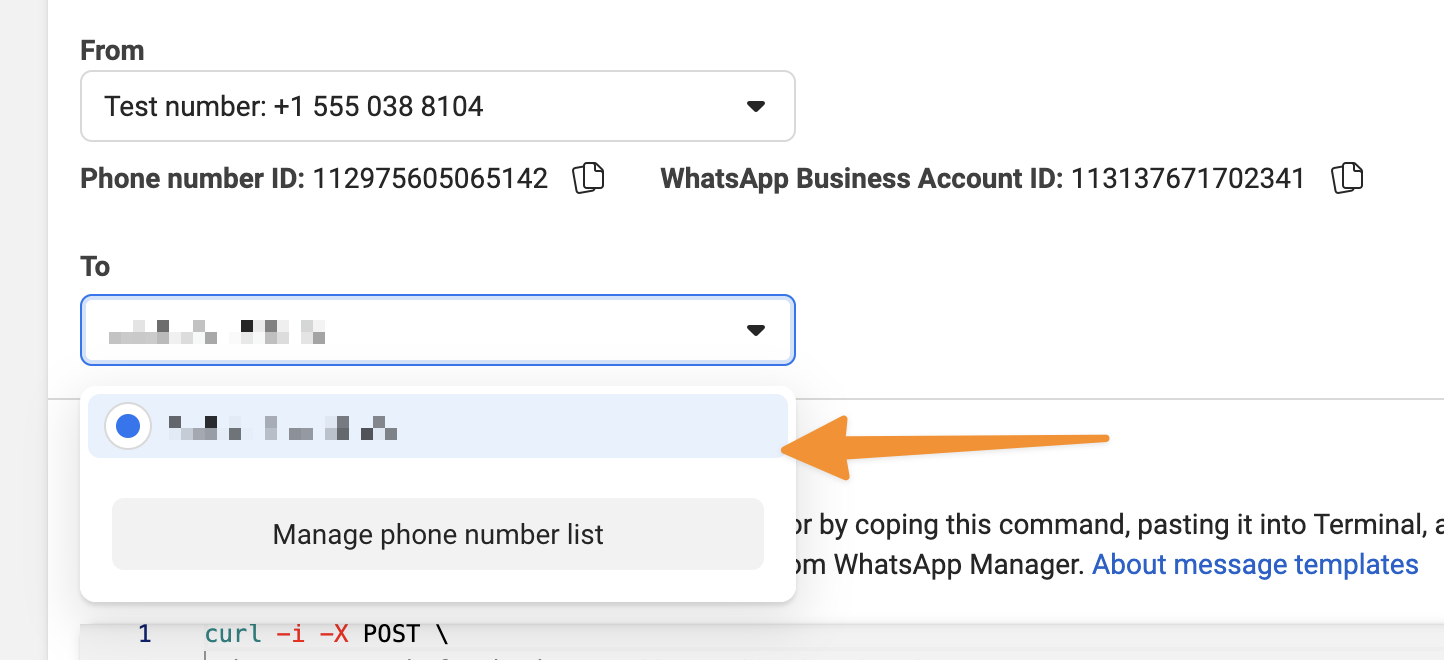
- Check Test Number Allow List: If using a test phone number, ensure the user’s phone number is in the allowed numbers list.
Contact Indite support via the bot in the bottom-right corner of the application if issues persist.