Image Bubble Block
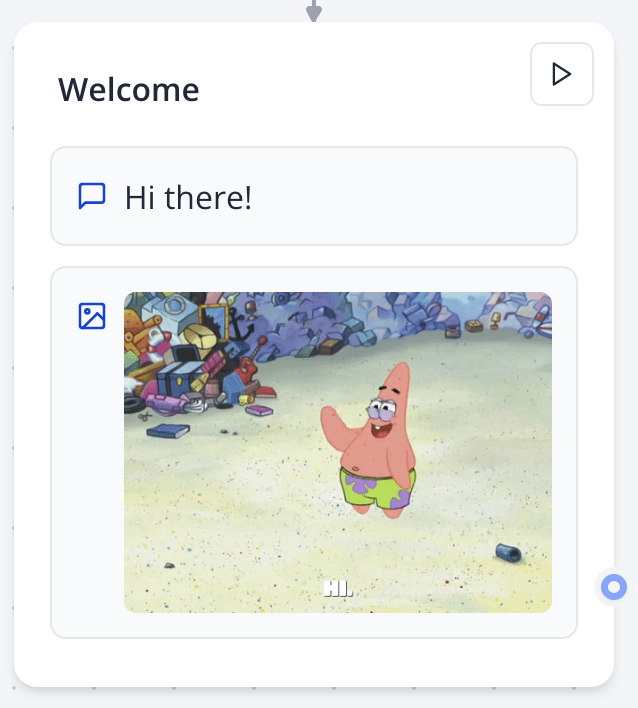
The Image Bubble block displays images in your bot's flow. Upload an image, paste a URL, or select a GIF via Giphy integration.
Use .jpg, .png, or .gif (via Giphy) for optimal compatibility across all platforms.
Key Features
- Multiple Image Sources: Upload images directly, paste external URLs, or browse Giphy for animated GIFs
- Dynamic URLs: Use variables to display personalized images based on user data or API responses
- Responsive Display: Images automatically adjust to fit the chat interface
- Clickable Images: Users can click to view images in full resolution
Configuring in the Flow Editor
- Drag the Image Bubble block from the Bubbles category into a group.
- Upload an image, paste a URL, or select a Giphy GIF.
- Adjust settings like size or captions if needed.
Configuration Options
| Option | Description |
|---|---|
| Image Source | Choose between uploading a file, pasting a URL, or selecting from Giphy |
| Dynamic URL | Insert a variable containing an image URL for personalized content |
| Alt Text | Add descriptive text for accessibility (recommended) |
| Link | Optionally make the image clickable with a destination URL |
Example Usage
Product Showcase
Display product images based on user selections:
- Store the product image URL in a variable from your database or API
- Use the Image Bubble with a dynamic URL variable like
{{Product Image}} - Follow up with a Text Bubble describing the product
Welcome Message with Brand Logo
- Upload your company logo directly to the Image Bubble
- Place it at the start of your flow for brand recognition
- Follow with a personalized greeting message
Interactive GIF Responses
- Select a GIF from Giphy that matches the conversation mood
- Use animated GIFs to celebrate user achievements or add personality
Best Practices
- Optimize Image Size: Use compressed images (under 1MB) for faster loading times
- Use Descriptive Alt Text: Improve accessibility for screen reader users
- Consider Mobile Users: Test how images appear on smaller screens
- Avoid Text-Heavy Images: Text in images may be difficult to read on mobile devices
- Use Dynamic URLs Carefully: Ensure external image URLs are stable and accessible
- Leverage GIFs Sparingly: Animated content is engaging but can be distracting if overused