Set Variable Block
The Set Variable Block allows you to assign specific values to variables, enabling dynamic data manipulation within your application.
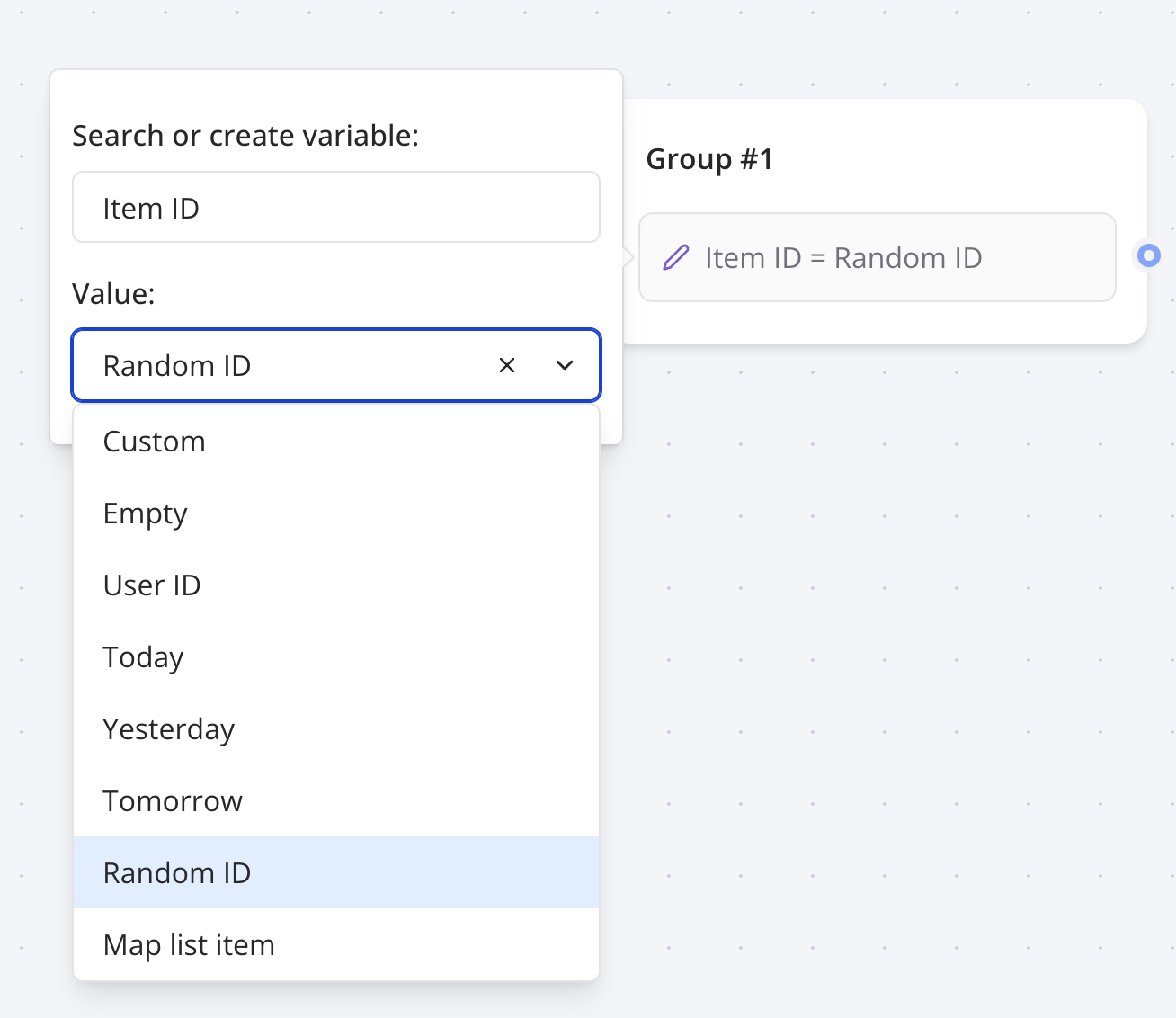
Custom Value
The Custom option lets you assign any value to a variable, including plain text or JavaScript code. This flexibility allows you to perform operations on existing variables or create dynamic values.
Working with Expressions
You can use JavaScript expressions to manipulate existing variables. Here are some examples:
-
Add a value:
{{Score}} + 5 -
Sum variables:
{{Score}} + {{Answer}} -
Multiply variables:
{{Score}} * {{Multiplier}} -
Calculate a percentage:
{{Score}} * 100 / {{MaxScore}} -
Extract the first name:
{{FullName}}.split(' ')[0] -
Convert to uppercase or lowercase:
{{Name}}.toUpperCase(){{Name}}.toLowerCase()
You can also write custom JavaScript code to compute a value. The returned value is assigned to the variable. For example:
const name = 'John' + 'Smith';
return name;
If you omit the return keyword, it is automatically prepended to your code. For instance:
'John' + 'Smith'is equivalent to:
return 'John' + 'Smith';Variables are evaluated as JavaScript variables, not parsed as strings. Avoid using quotes around variable references. For example:
- ❌
"{{URLBase}}/path"results invclfqgqkdf000008mh3r6xakty/path - ✅
{{URLBase}} + '/path'results inhttps://domain.com/path - ✅
`${{{URLBase}}}/path`results inhttps://domain.com/path
Variable values can be either a string or a list of strings. For more details, see Valid Value Types.
Empty Value
The Empty option resets a variable to its uninitialized state, as if it was never set.
Append Value(s)
The Append Value(s) option transforms a variable into a list of strings and appends new values. It handles three scenarios:
- If the variable is empty, it creates a new array with the provided value(s).
- If the variable is a single value (not an array), it creates an array with the existing value followed by the new value(s).
- If the variable is already an array, it appends the new value(s) to the existing array.
Environment Name
Sets the variable to either web or whatsapp, depending on the environment in which the application is running.
Device Type
Sets the variable to desktop, tablet, or mobile based on the user's device. Detection uses a combination of screen width, user agent, and touch capabilities. For implementation details, refer to the packages/bot-engine/blocks/logic/setVariable/executeSetVariable.ts in the source.
Result ID
Assigns the variable the current Result ID, which corresponds to a row in the Results table. This can serve as a unique User ID for the current user session.
Date and Time Options
The Yesterday, Now, and Tomorrow options set the variable to the specified date and time in ISO format. You can optionally specify a time zone to convert the date accordingly.
Random ID
Generates a random ID using the CUID algorithm and assigns it to the variable.
Moment of the Day
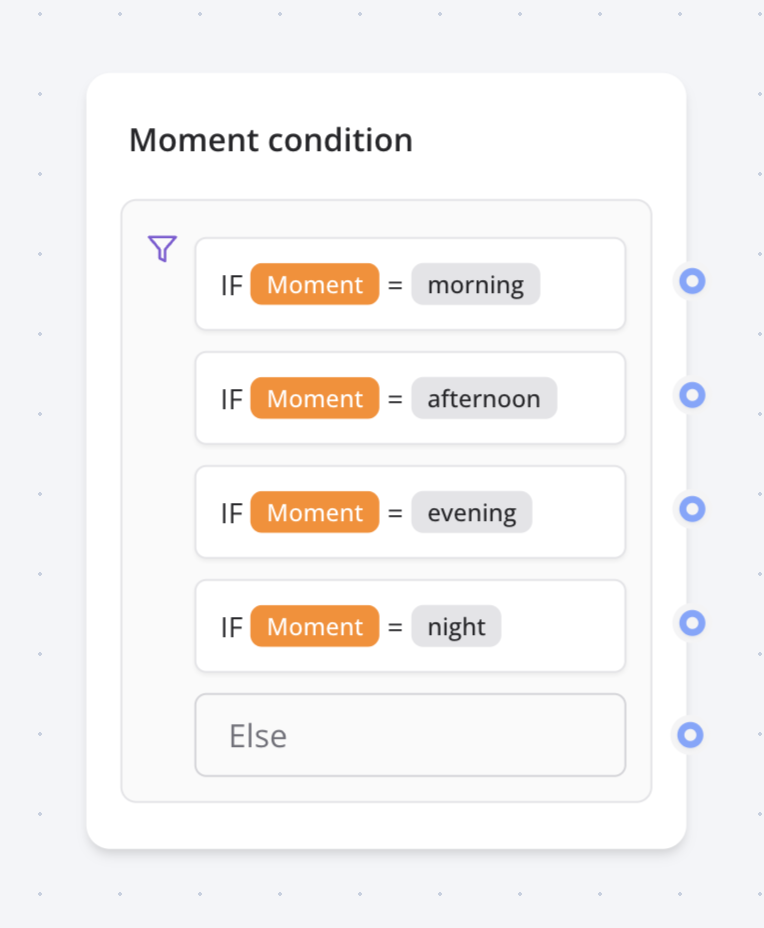
Sets the variable to one of the following values based on the user's local time: morning, afternoon, evening, or night. This can be used to conditionally display content.
Map Item with Same Index
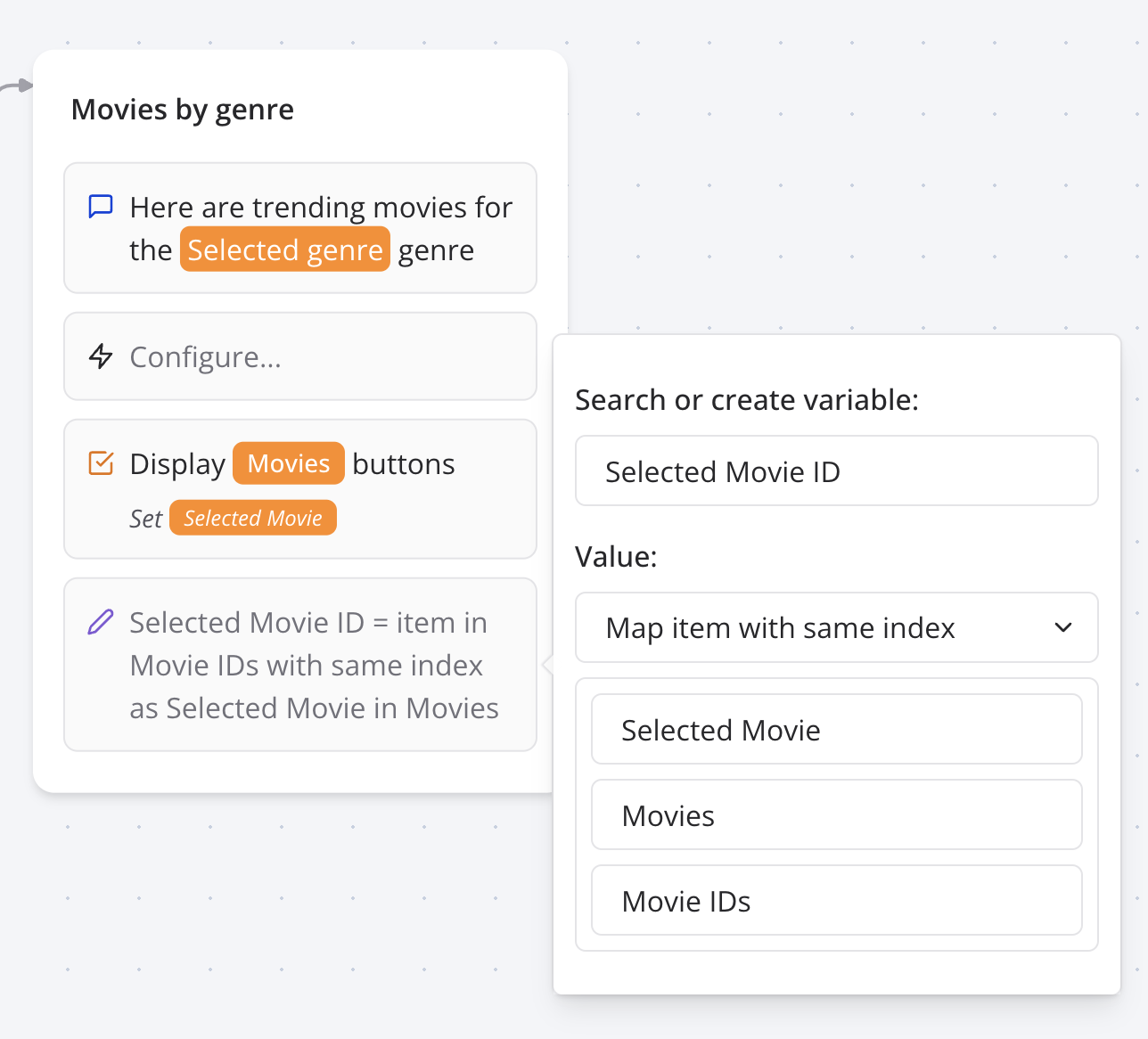
The Map Item with Same Index option retrieves an item from one list (e.g., Ids) that shares the same index as an item in another list (e.g., Labels). This is useful when working with paired data from external services, such as display labels and corresponding IDs.
Phone Number
Available only in WhatsApp. Sets the variable to the user's phone number.
Contact Name
Available only in WhatsApp. Sets the variable to the user's contact name.
Pop / Shift
- Pop: Removes the last item from a list variable and assigns it to a designated "Popped Item" variable.
- Shift: Removes the first item from a list variable and assigns it to the "Popped Item" variable.
These options are useful for processing list items in a loop. For more details, see How to Create Loops.
Save in Results
By default, variables are temporary and only persist during the current user session. Enabling the Save in Results option stores the variable in the Results table for persistent storage.
Execute on Client
Enable the Execute on Client option to run custom JavaScript code in the user's browser. This is necessary when accessing browser-specific APIs like window, document, or navigator.
Get User's Geolocation
To retrieve the user's geolocation, use the following custom code with the Execute on Client option enabled:
function getLocation() {
  return new Promise((resolve) => {
    navigator.geolocation.getCurrentPosition(
      (position) => resolve(`${position.coords.latitude}, ${position.coords.longitude}`),
      (error) => resolve('error'),
      { enableHighAccuracy: true, timeout: 5000 }
    );
  });
}

const coords = await getLocation();

if (coords === 'error') {
  return 'Unable to get location';
}

return coords;
This code retrieves the user's latitude and longitude, handling potential errors gracefully.