Send Email Integration
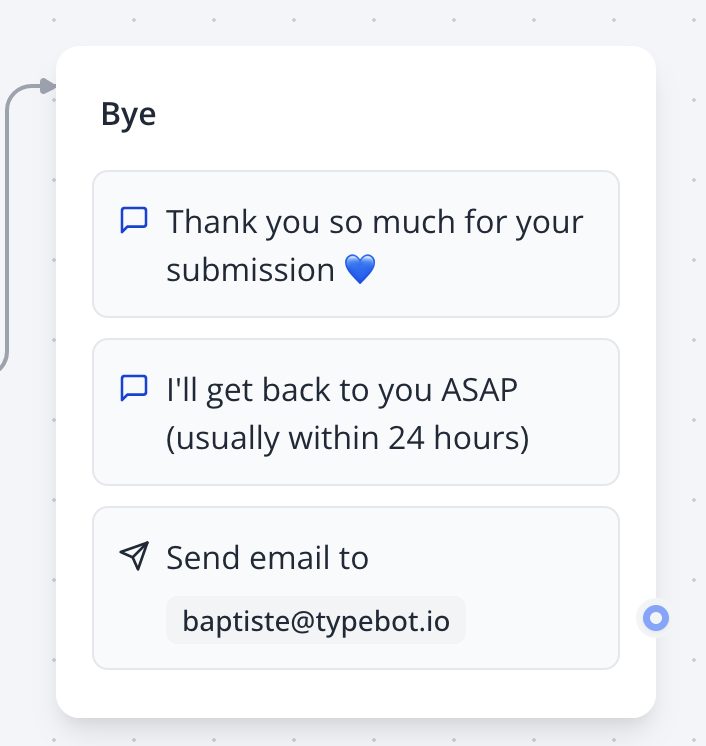
The Send Email block enables you to send email notifications to users or yourself when specific actions occur, such as a user completing a bot interaction. It also supports sending customized recap emails to users, enhancing engagement and communication.
Use the Send Email block in the Flow Editor to automate notifications or send personalized recaps to users.
Configuring SMTP for Free Plan Users
If you’re using the Free plan, you’ll need to configure your own SMTP account to prevent spam and ensure secure email delivery. Several SMTP providers offer generous free tiers, including:
When to Use Send Email
To set up your SMTP account:
- Obtain Credentials: Sign up with an SMTP provider and retrieve your SMTP server details (host, port, username, and password).
- Configure in Workflow: Enter these credentials in the Send Email block settings to enable email sending.
Caution: Ensure your SMTP credentials are correct and secure to avoid delivery issues or unauthorized access.
- SendGrid (opens in a new tab)
- Mailgun (opens in a new tab)
- Amazon SES (opens in a new tab)
- Resend (opens in a new tab)
Set up an SMTP account with a supported provider to enable email sending on the Free Plan.
For users on a Paid Plan, emails can be sent directly from support@indite.io without additional SMTP configuration.
Custom Email Content
You can craft custom email content using plain text or HTML to tailor the message to your needs. This flexibility allows you to create branded, engaging emails for your users.
Design custom text or HTML emails in the Flow Editor to match your bot’s tone and branding.
Adding Attachments
The Send Email block supports file attachments through the Attachments option. To include files:
- Ensure the attachment is linked to a variable from a File Upload Input block.
- Verify that the variable contains the correct file data before sending.
Attach files to emails by linking a variable from a File Upload Input block in the Flow Editor.