Payment Input Block
The Payment input block allows you to collect payment. You first need to add your Stripe account.
Set up your Payment block in the Indite editor to securely collect payments via Stripe with ease!
Connect Stripe Account
After clicking on Select an account > Connect new, a configuration popup appears:
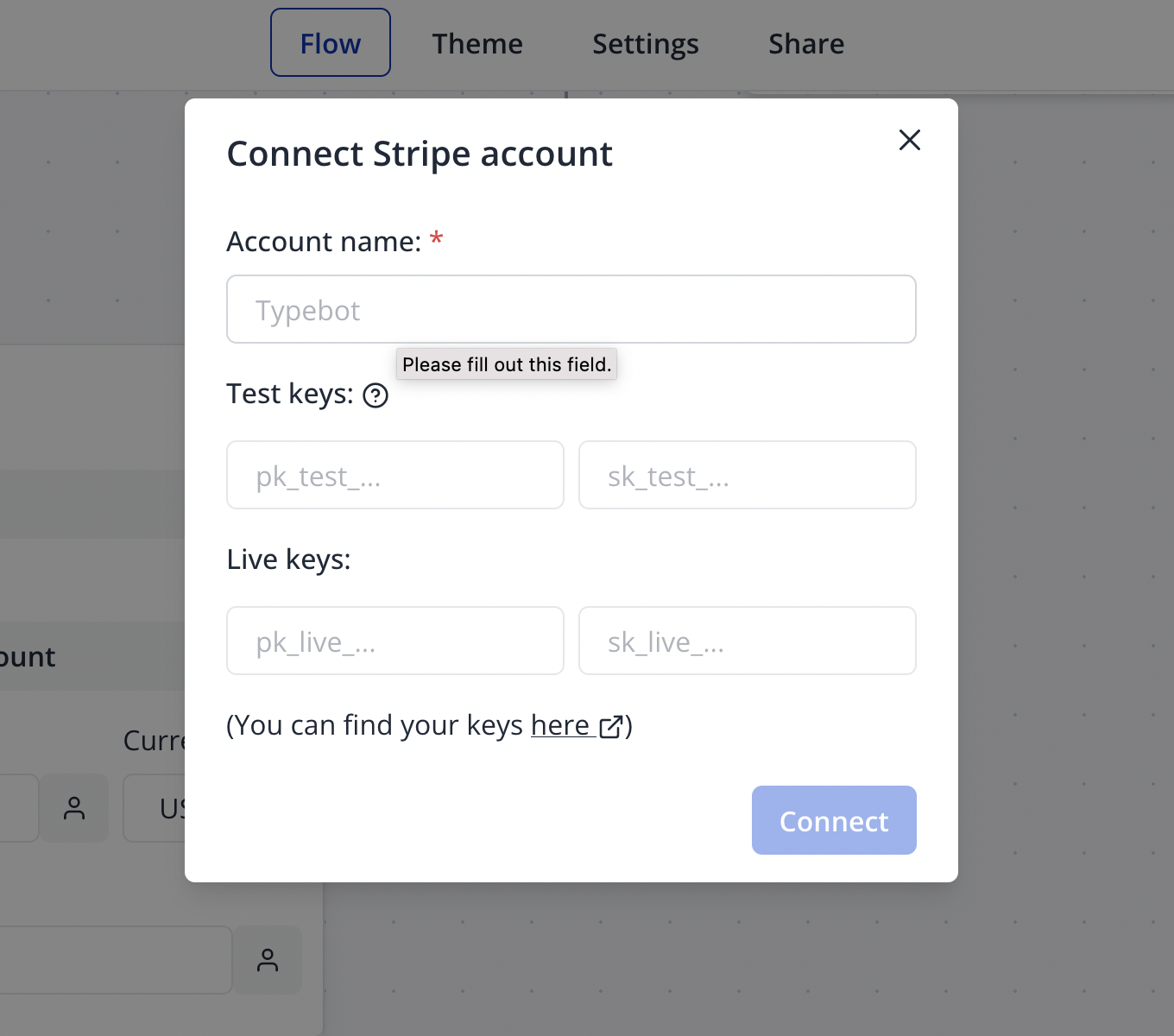
- Account name could be anything you'd like; it’s not something that has to come from Stripe.
- Test keys can be found here: https://dashboard.stripe.com/test/apikeys (opens in a new tab)
- Live keys can be found here: https://dashboard.stripe.com/apikeys (opens in a new tab)
Test keys will be used in the preview for testing purposes. Live keys will be used in the published bot.
If you'd still like to use the test keys in the published bot, you just need to also fill in the test keys into the live keys inputs.
Simulate a successful payment using test cards from Stripe’s testing documentation: https://docs.stripe.com/testing?testing-method=card-numbers#cards (opens in a new tab).
Input Configuration
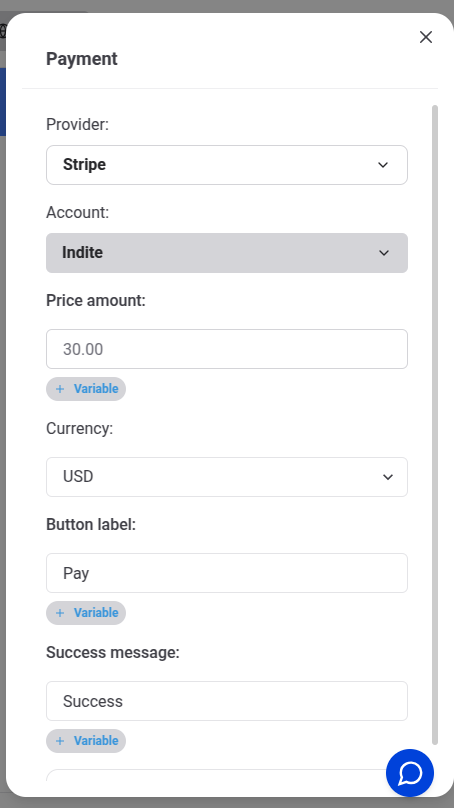
Once you have a Stripe account, you can select it and configure your input:
Flow Editor
Bot Preview
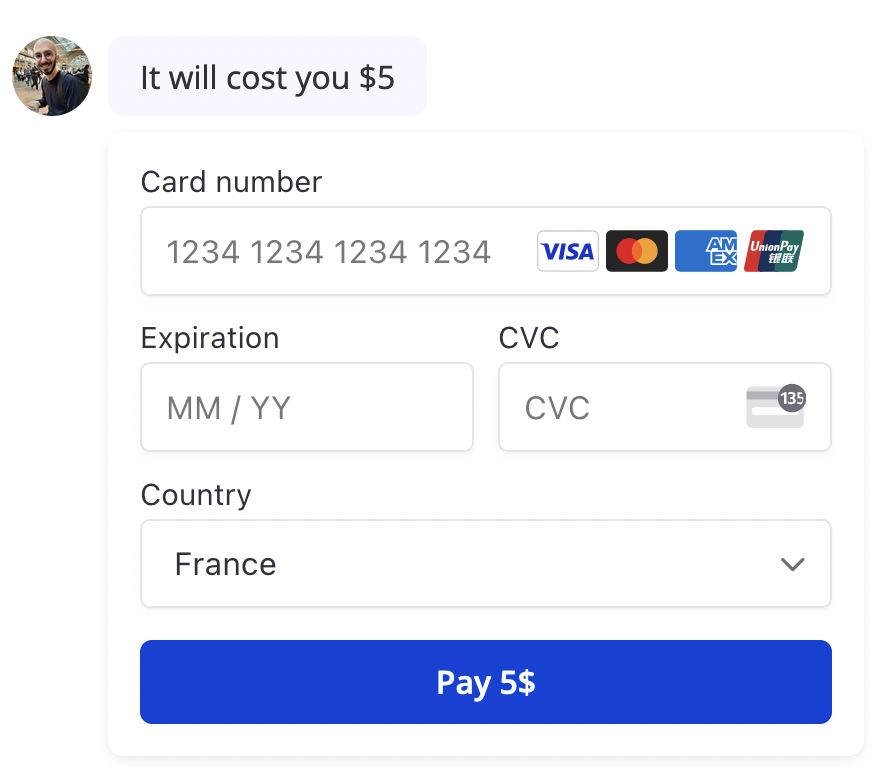
Make sure to enable any payment method you'd like to appear in your Stripe dashboard at this URL: https://dashboard.stripe.com/settings/payment_methods (opens in a new tab).
This is where you can enable Cards, Apple Pay, Google Pay, Alipay, WeChat Pay, etc.
Enable desired payment methods in your Stripe dashboard to ensure they appear in the bot’s payment interface.