Embed Bubble Block
The Embed Bubble block enables you to display an embedded website, iframe, or media content directly within your bot’s conversation flow. This includes video URLs from platforms like YouTube, Vimeo, or direct .mp4 files, as well as other embeddable web content.
Note: Not all websites support embedding due to security or policy restrictions. If the embed appears blank, the source website likely does not allow iframe embedding.
Configuring in the Flow Editor
Add an Embed Bubble block to your bot’s flow in the Indite editor:
- Drag the Embed Bubble block from the Bubbles category into a group.
- Paste the URL of the website, video, or embed code into the block’s settings.
- Optionally, adjust dimensions (width/height) or add a fallback message for unsupported embeds.
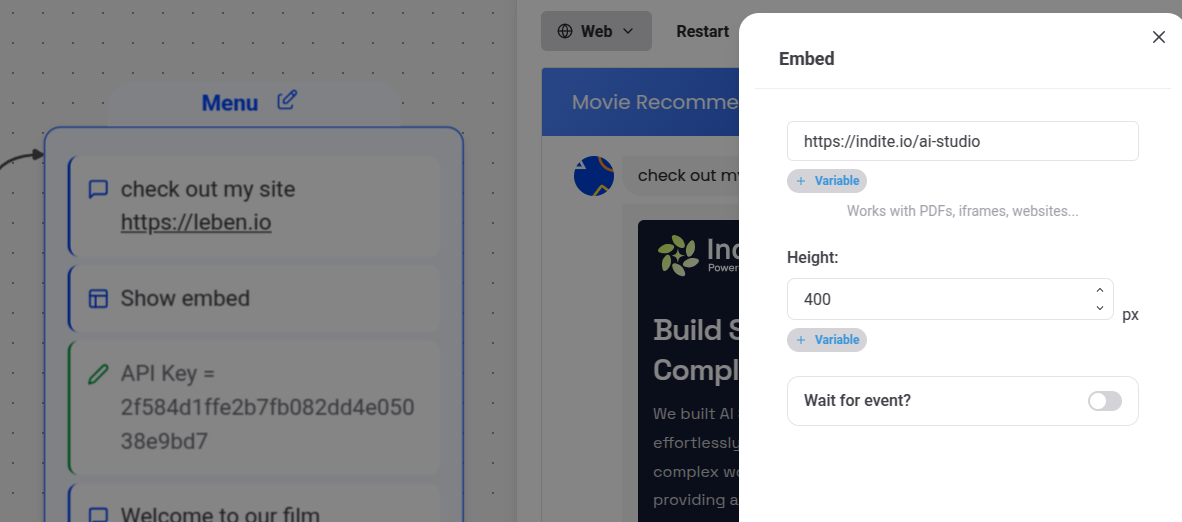
Embedding a PDF from Google Drive
To embed a PDF hosted on Google Drive:
- Select the PDF file in Google Drive.
- Right-click the file > Preview > More actions > Open in a new window.
- In the new window, click More actions > Embed item.
- Copy the generated embed code.
- Paste the embed code into the Embed Bubble block’s configuration in the Indite editor.
Note: Ensure the PDF is publicly accessible or shared appropriately for embedding to work.
Waiting for Events from the Embed
If you own the embedded website and want to pause the bot flow until an event is received from the embed, enable the Wait for Event option. This allows the embedded content to dispatch custom events back to the bot.
Implementing Event Dispatch in the Embedded Website
In the code of your embedded website, use postMessage to send events to the parent bot window. Example:
window.parent.postMessage(
  { name: 'MyEvent', data: 'Custom data passed to the bot variable' },
  '*'
);- The
nameproperty must match the event name specified in the Embed Bubble block configuration. - The
dataproperty can include any custom data to store in bot variables.
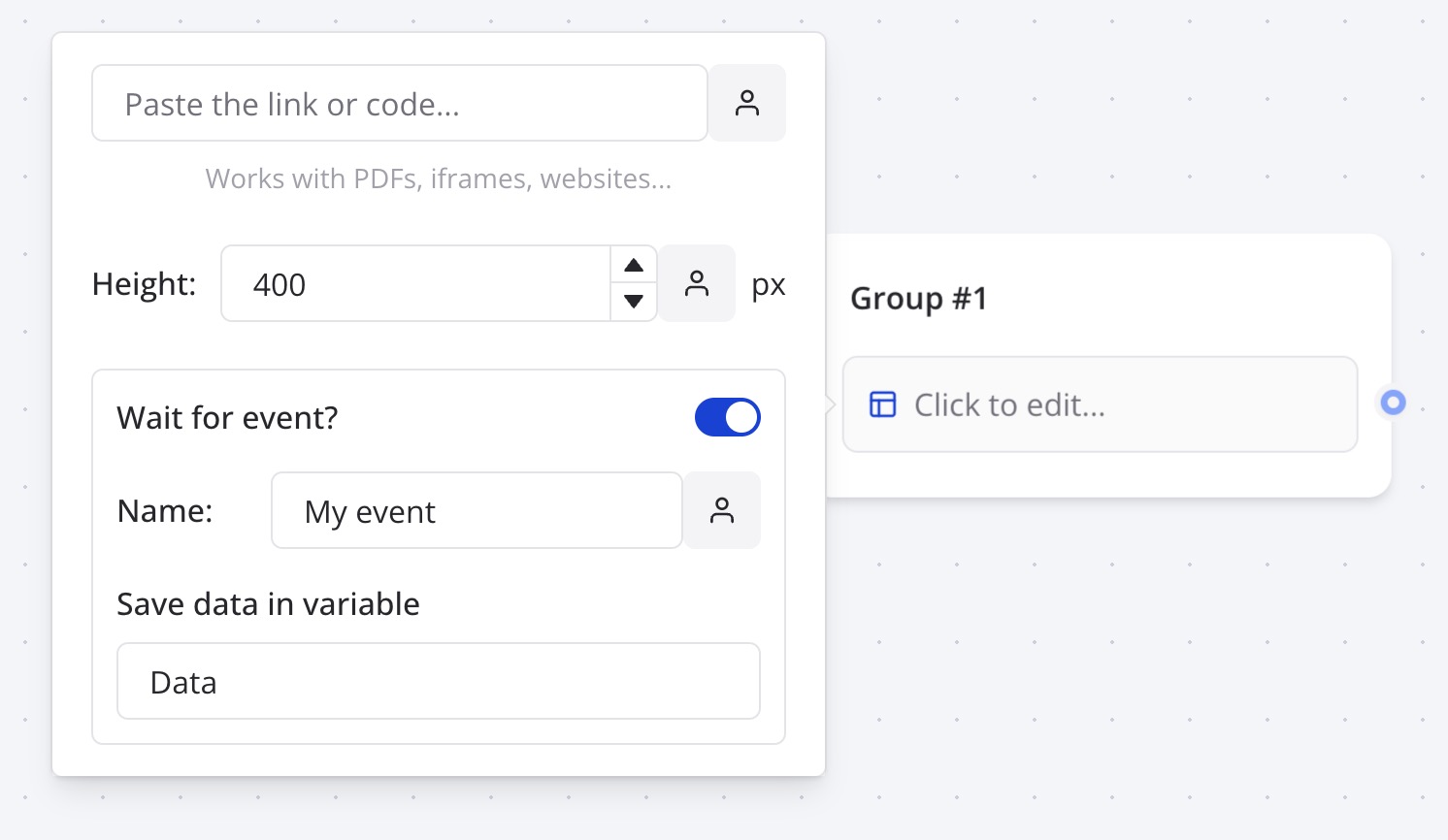
Warning: The embedded website must be on the same domain or properly configured for cross-origin communication. Test event handling in the Indite editor’s preview mode.
Troubleshooting
Embed Appears Blank or Fails to Load
- Embedding Restrictions: The source website may block iframe embedding. Test with a known embeddable URL (e.g., a YouTube video) to isolate the issue.
- URL Format: Ensure the URL is a direct link to the content (e.g.,
https://www.youtube.com/embed/VIDEO_IDfor YouTube). - Network Issues: Verify the URL is accessible and not blocked by firewalls or ad blockers.
Event Not Received from Embed
- Event Name Mismatch: Confirm the event
nameinpostMessageexactly matches the one in the block configuration (case-sensitive). - Cross-Origin Errors: Check browser console for CORS errors. The embedded site must allow communication with the bot’s domain.
- Timing: Ensure the event is dispatched after the embed loads (e.g., using
window.onload).
PDF Embed Not Displaying Correctly
- Sharing Settings: Set the Google Drive file to "Anyone with the link" for public access.
- Embed Code: Use the full iframe code from Google Drive’s embed tool, not just the file URL.
Note: Test embeds in different environments (web, WhatsApp) to ensure compatibility. WhatsApp has strict media and iframe limitations—see the WhatsApp Guide.
Best Practices
- Responsive Design: Set relative dimensions (e.g.,
width: 100%,height: 400px) for embeds to adapt to various screen sizes. - Fallbacks: Include a Text Bubble block as a fallback for unsupported embeds, describing the content.
- Security: Only embed trusted sources to avoid security risks like malicious scripts.
- Performance: Limit embed size and use lazy loading if possible to improve bot response times.
- Accessibility: Add descriptive alt text or captions for embedded content to support screen readers.