Variables
Variables are placeholders that store dynamic content, enabling you to create personalized and interactive user experiences in your bot. Understanding how to use variables effectively is key to building customized flows.
Saving an Answer in a Variable
You can configure an input block to store a user's response in a variable, which can then be reused elsewhere in the bot, such as in a text bubble:
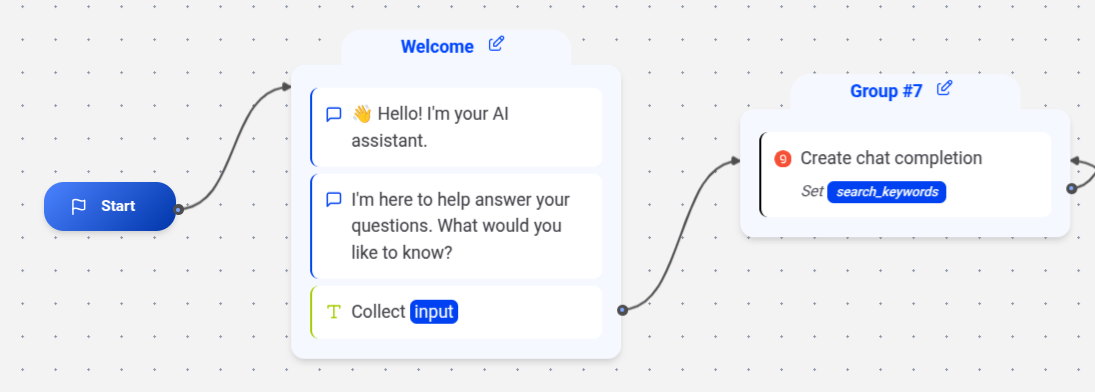
Using Variables
Once a variable is declared, you can reference it anywhere in your bot using the syntax:
{{MyVariable}}
Replace MyVariable with the name of your variable. This allows you to dynamically insert variable values into text bubbles, conditions, or other blocks.
Inline Variable Formatting
You can format variables directly within a text bubble using JavaScript expressions. Use the {{= ... =}} syntax to evaluate JavaScript code inline. For example, to display a variable in uppercase:
{{={{MyVariable}}.toUpperCase()=}}
This syntax mirrors the behavior of the Custom Value option in the Set Variable Block. Additional examples include:
-
Get the first item of a list:
{{={{MyVariable}}[0]=}}or{{={{MyVariable}}.at(0)=}} -
Get the last item of a list:
{{={{MyVariable}}.at(-1)=}}
Variables Panel
Access the Variables Panel by clicking the Variables button in the top-right corner of the editor:
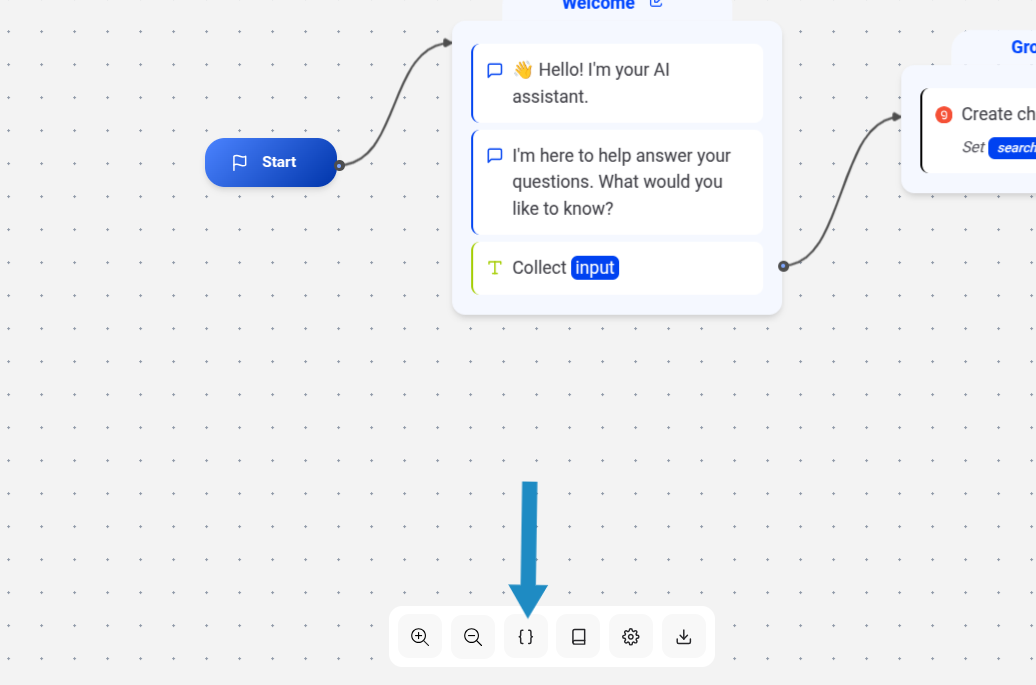
In the Variables Panel, you can:
- View all declared variables in your bot.
- Rename, edit, or delete variables.
- Enable the Save in Results option to persist variables in the Results table (by default, variables are only stored for the current session).
Prefilled Variables
Variables can be prefilled by passing values through URL parameters or the embed library. For example, if your bot includes variables named Email and FirstName, you can prefill them via a URL:
https://indite.io/my-bot?Email=test@test.com&First%20name=John
Note: Replace spaces in variable names with %20. This results in:
Email=>test@test.comFirstName=>John
Prefilled variables can be used like any other variable. For instance, you can use a Condition Block to check if Email is prefilled and skip asking for it, or enable the Prefill Input option to allow users to verify prefilled values.
Using the embed library, prefill variables as follows:
Bot.initBubble({
  bot: 'my-bot',
  prefilledVariables: {
    Email: 'test@test.com',
    'FirstName': 'John',
  },
})Note: Variable names with spaces must be enclosed in quotes.
Hidden Variables
Variables don’t need to be displayed to users. You can create hidden variables for internal use, such as storing a User ID, utm_source for marketing campaigns, or other contextual data. Ensure the variable exists in the global variables dropdown:
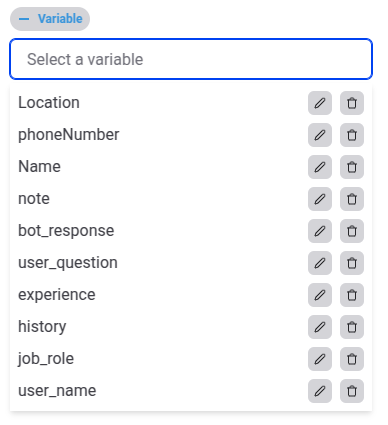
These variables appear as columns in the Results table:

Valid Value Types
Variables can store either a single string (string) or a list of strings (string[]). Examples:
// ✅ Valid
'Hello', ['item 1', 'item 2']

// ❌ Invalid (automatically converted)
2, true, { foo: 'bar' }
// Converted to:
'2', 'true', '{ foo: "bar" }'
Non-string types (e.g., numbers, booleans, objects) are automatically converted to strings or lists of strings before being saved. This design encourages a clean bot structure and meaningful variable usage.
For conditions, string values resembling numbers are dynamically parsed as numbers during execution. To store complex data (e.g., an object), use JSON.stringify to convert it to a string, and parse it back using JSON.parse in an inline format:
{{=JSON.parse({{MyObjectVariable}})=}}