HTTP Request Integration
The HTTP Request block enables you to send HTTP requests to third-party services, allowing you to send data from your bot or fetch information to use within your bot.
Configure the HTTP Request block in the Indite editor to connect your bot with third-party APIs seamlessly!
Make an API Request and Fetch Data
Making API requests requires understanding HTTP request parameters. Most services provide API documentation detailing available endpoints and parameters. Adjust the HTTP Request block’s settings to retrieve specific data from the third-party service.
Refer to the service’s API documentation to configure request parameters in the Flow Editor for accurate data retrieval.
Custom Body
You can customize the request body using collected variables. Here’s an example:
{
  "name": "{{Name}}",
  "email": "{{Email}}"
}Use variables in the Flow Editor to create dynamic custom request bodies for API calls.
Example with a Dummy API: CREATE and GET
This video demonstrates how to configure HTTP Request blocks for a dummy API, including setting the URL, method, and custom body, testing the request, saving the created employee ID, and implementing a find-employee-by-ID endpoint to map the employee name to a variable.
Watch the video tutorial to learn how to configure HTTP Request blocks for creating and retrieving data.
Example: Fetch Movie Information
To create a bot that retrieves movie information from the OMDB API (opens in a new tab), use a variable in the API URL. For example, replace "Star Wars" in http://www.omdbapi.com/?t=Star%20Wars&apikey=1eb4670b with a bot variable:
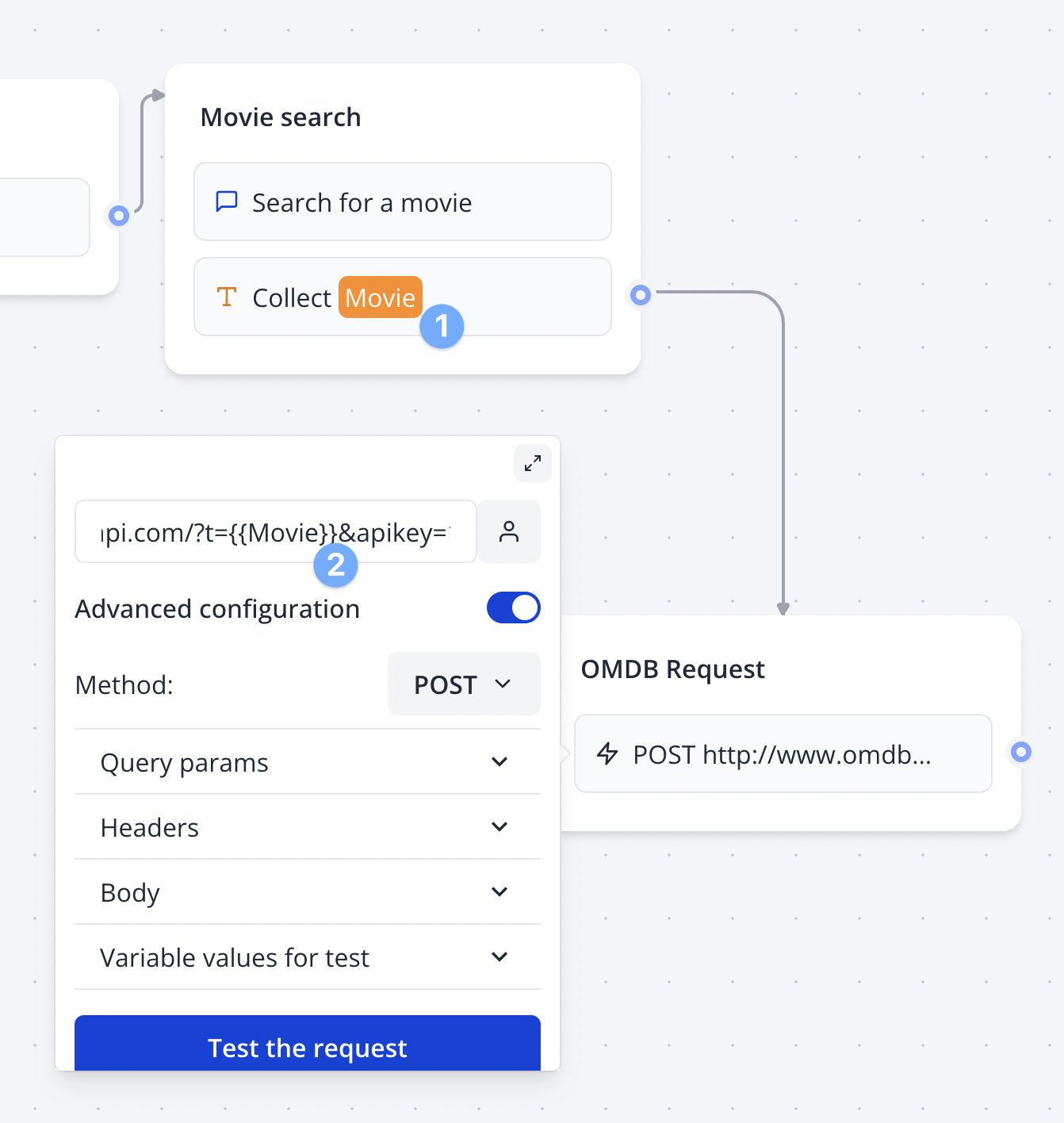
Insert a variable into the API URL in the Flow Editor to fetch dynamic data, such as movie information.
Set a test value for the variable to replace it during testing with the "Test the request" button:
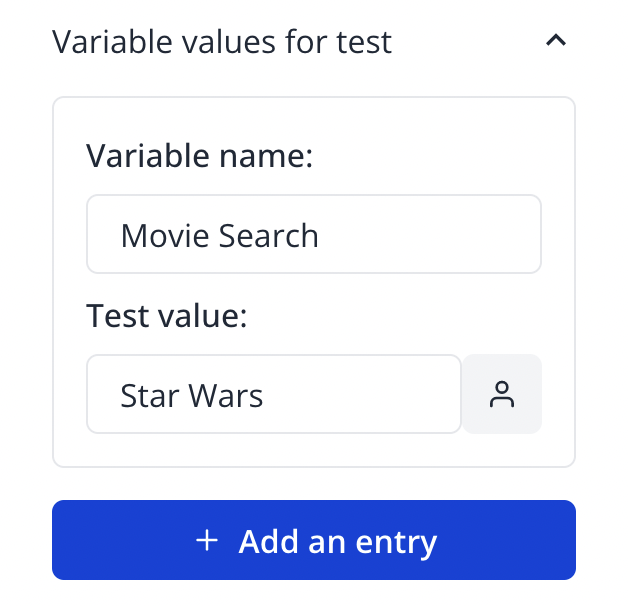
Configure test values in the Flow Editor to simulate variable substitution during request testing.
Click "Test the request" to execute the request and save the results to multiple variables:
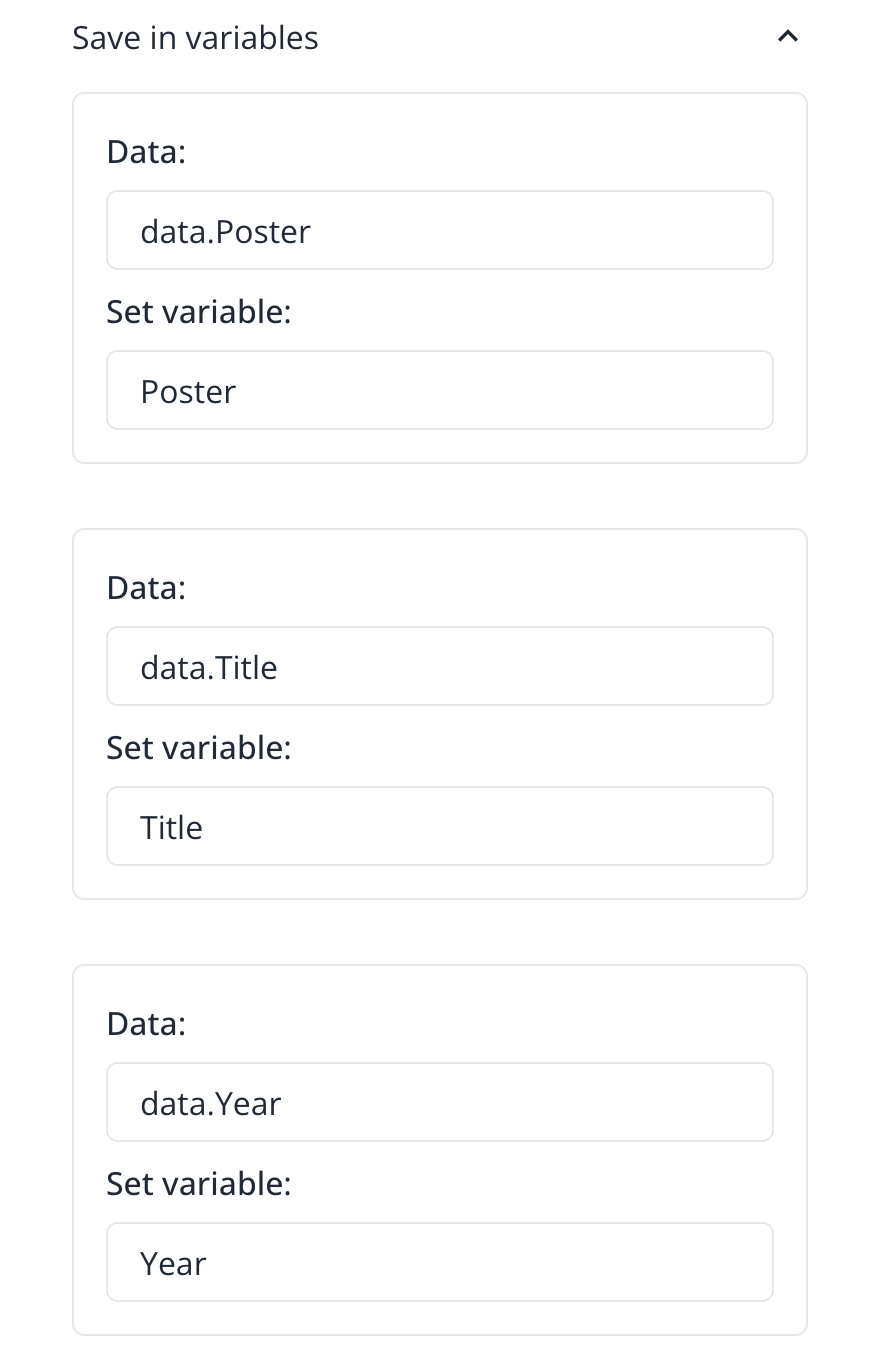
Save API response data to variables in the Flow Editor for use in dynamic bot content.
Use these variables to display dynamic content in subsequent bot bubbles:
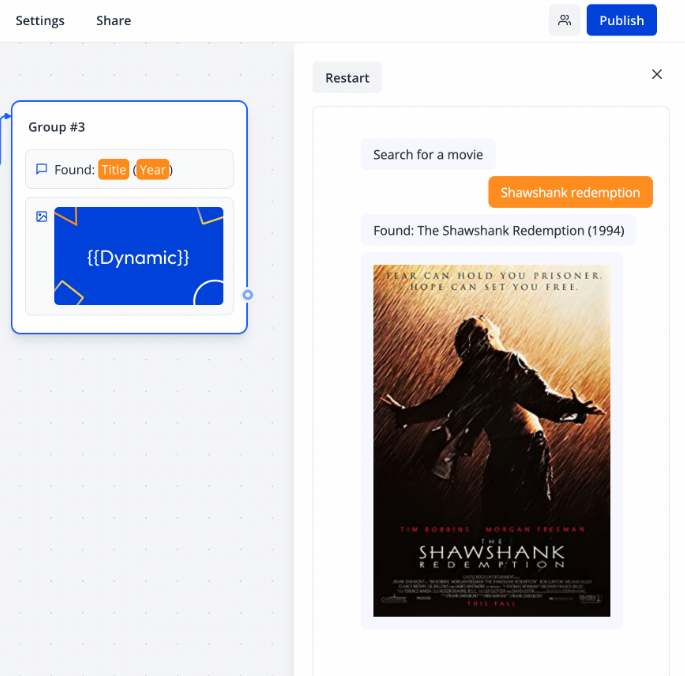
Display dynamic API data in bot bubbles for an engaging user experience.
With API calls, you can connect to virtually any API to fetch or send data as needed.
Call a Webhook URL
To use a webhook URL from a third-party service (e.g., Make.com, Zapier), paste the URL into the Webhook block and click "Test the request." The service receives a snapshot of the bot’s data by default.
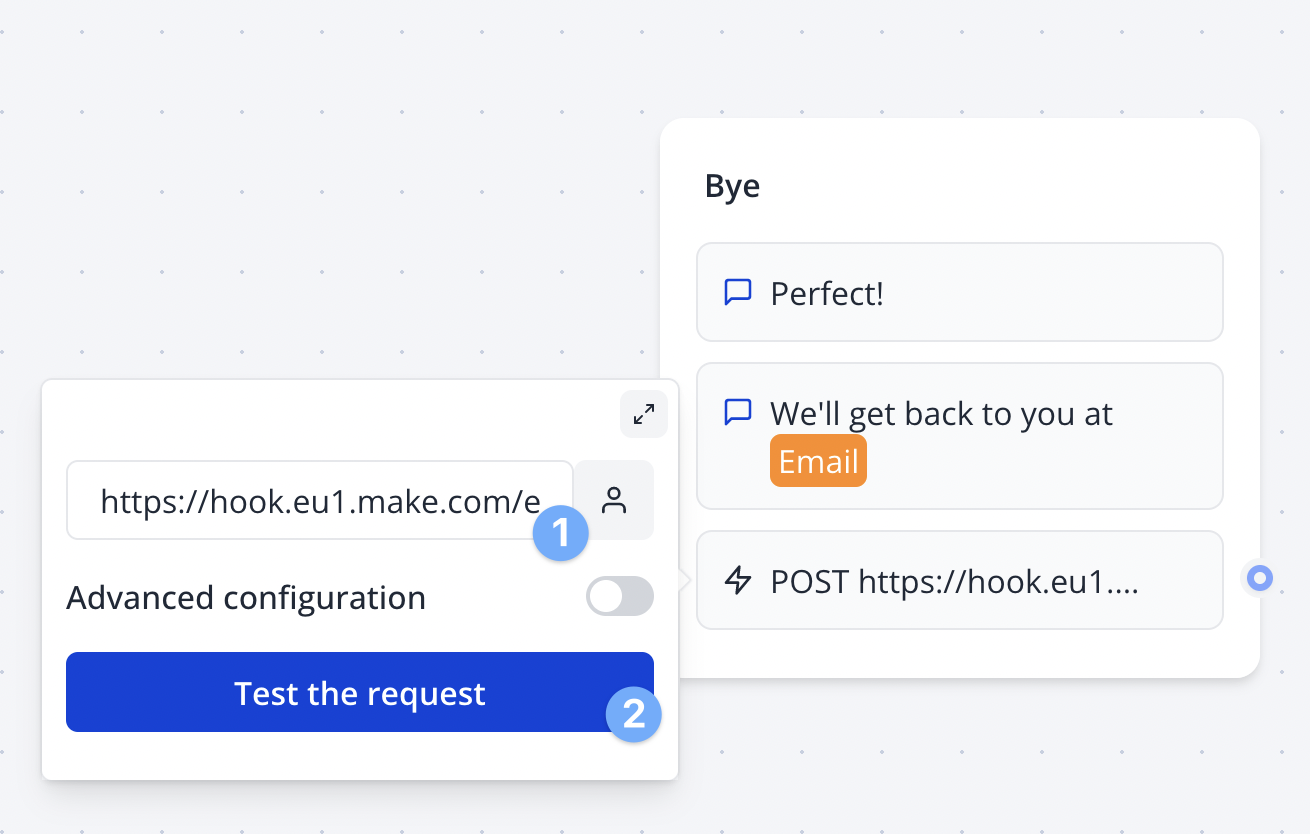
Paste and test webhook URLs in the Flow Editor to send data to third-party services like Make.com or Zapier.
You can customize the request sent to the third-party service as needed.
Timeout
The Webhook block defaults to a 10-second timeout for third-party service responses. If no response is received, the block fails. Adjust this timeout in the "Advanced params" section of the Webhook block settings.
Customize the timeout value in the Flow Editor’s Advanced params to handle slow third-party responses.
Troubleshooting
If the Webhook block request fails or does not trigger, check the logs for details. For further assistance, contact support using the in-tool chat button. Use tools like Webhook Tester (opens in a new tab) to inspect webhook payloads for debugging.
Review logs or use Webhook Tester to troubleshoot HTTP Request block issues, and contact support via the in-tool chat if needed.
Webhook Execution Order
Webhooks may not execute in the expected order, as the bot processes all blocks between input blocks on the server before displaying results.
Understand that webhooks are processed server-side, which may affect execution order in your flow.