Add Members and Guests
Manage collaboration in your Bot workspace by assigning roles with varying levels of access: Admins, Members, and Guests.
User Roles
- Admins: Have full control over the workspace, including managing settings, deleting the workspace, and adding or managing admins, members, and guests.
- Members: Team members who can create and edit bots but cannot modify workspace settings or manage user access.
- Guests: External collaborators invited to work on specific bots. They have access only to the bots they’re invited to, not the entire workspace.
Inviting Admins and Members
To invite admins or members:
- Navigate to the Settings & Members menu in your workspace.
- Select the Members tab to view the workspace members list:
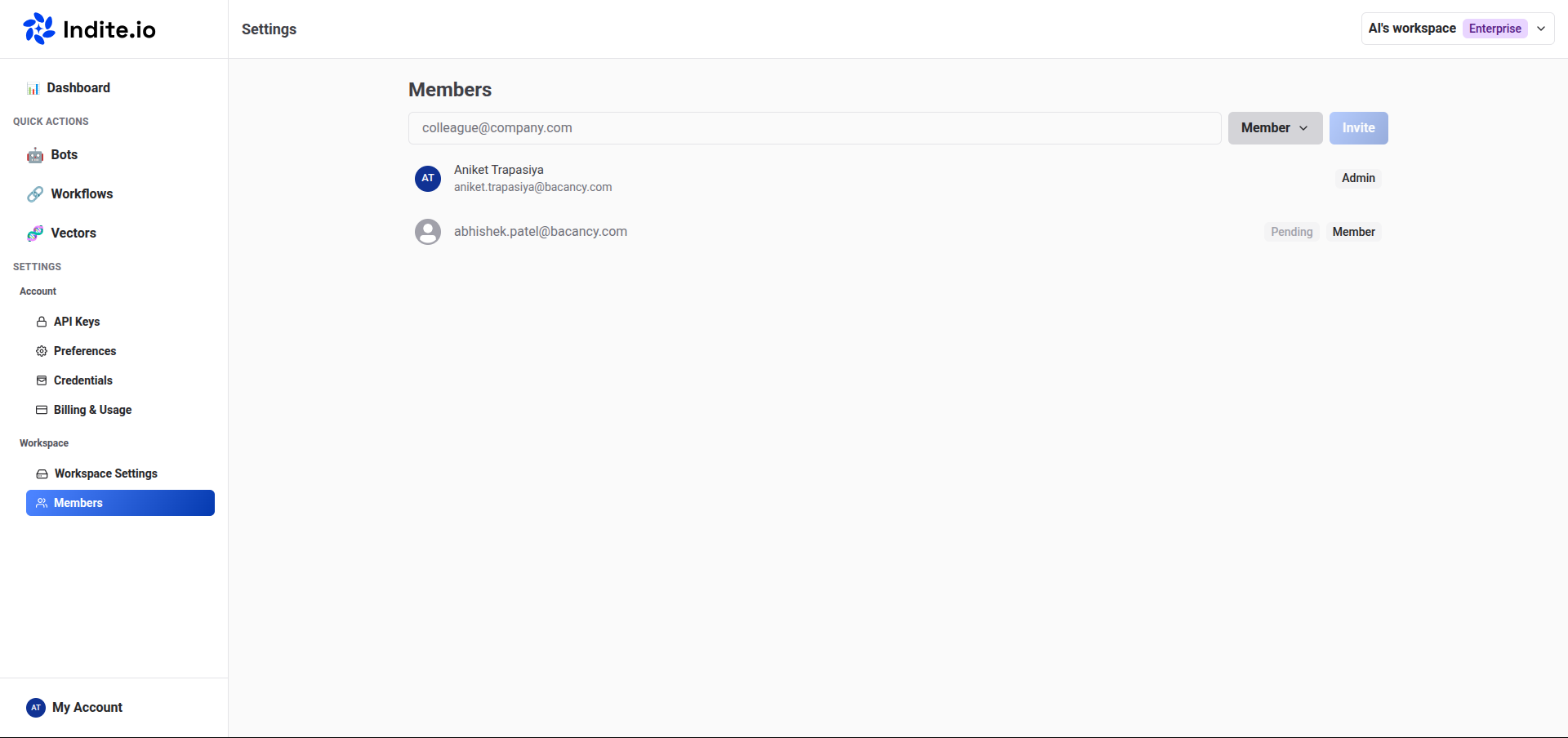
- Invite new admins or members and assign admin roles to existing members as needed.
Admins have full workspace management capabilities, while members are limited to creating and editing bots.
Inviting Guests
To invite guests to collaborate on a specific bot:
- Open the bot and click the Invite users to collaborate icon button.
- View the guests list to see who has access to the bot:
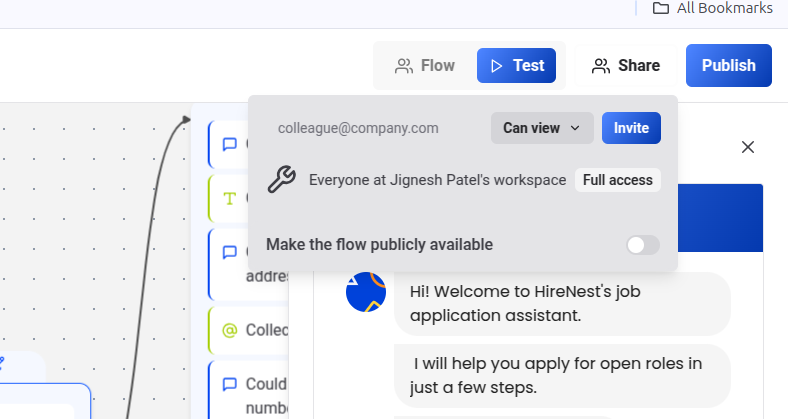
Guests can be granted one of two permission levels:
- View: Allows guests to view the bot’s flow and results but not edit them.
- Edit: Allows guests to view and edit the bot’s flow and results.
Guests must be invited to individual bots and cannot access the entire workspace unless explicitly invited to each bot.