OpenAI Integration
The OpenAI block enables you to create dynamic chat completions, process audio, and extract variables using OpenAI’s AI models, enhancing your bot’s interactivity.
Integrate the OpenAI block in the Indite editor to enable advanced AI-driven conversations and data processing!
Create Chat Completion
The OpenAI block lets you generate chat completions based on user queries, displaying responses directly in your bot.
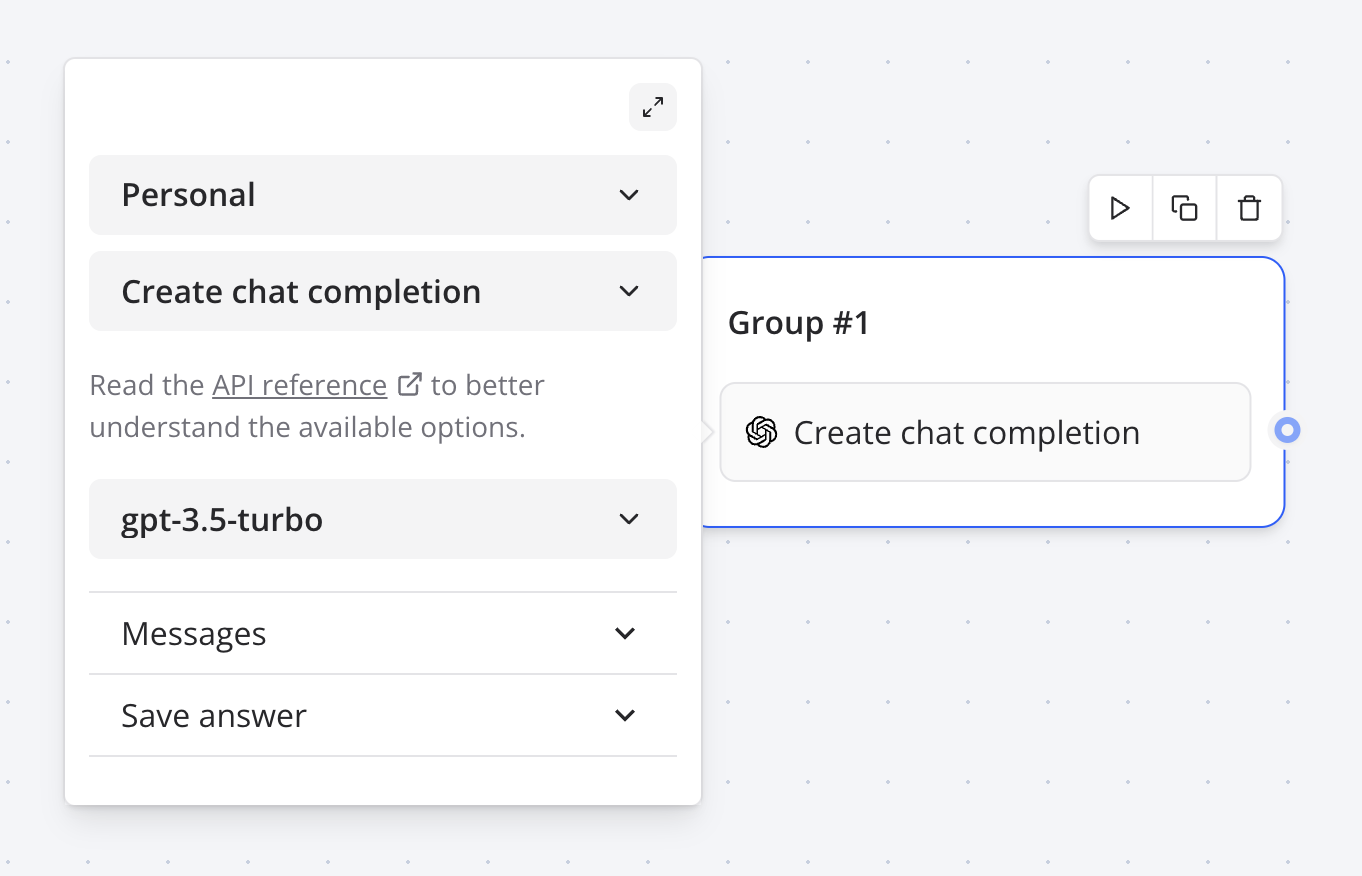
Set up the OpenAI block in the Flow Editor to generate chat completions for user queries.
It includes a Dialogue message type, which simplifies passing a sequence of saved assistant and user message history to OpenAI:
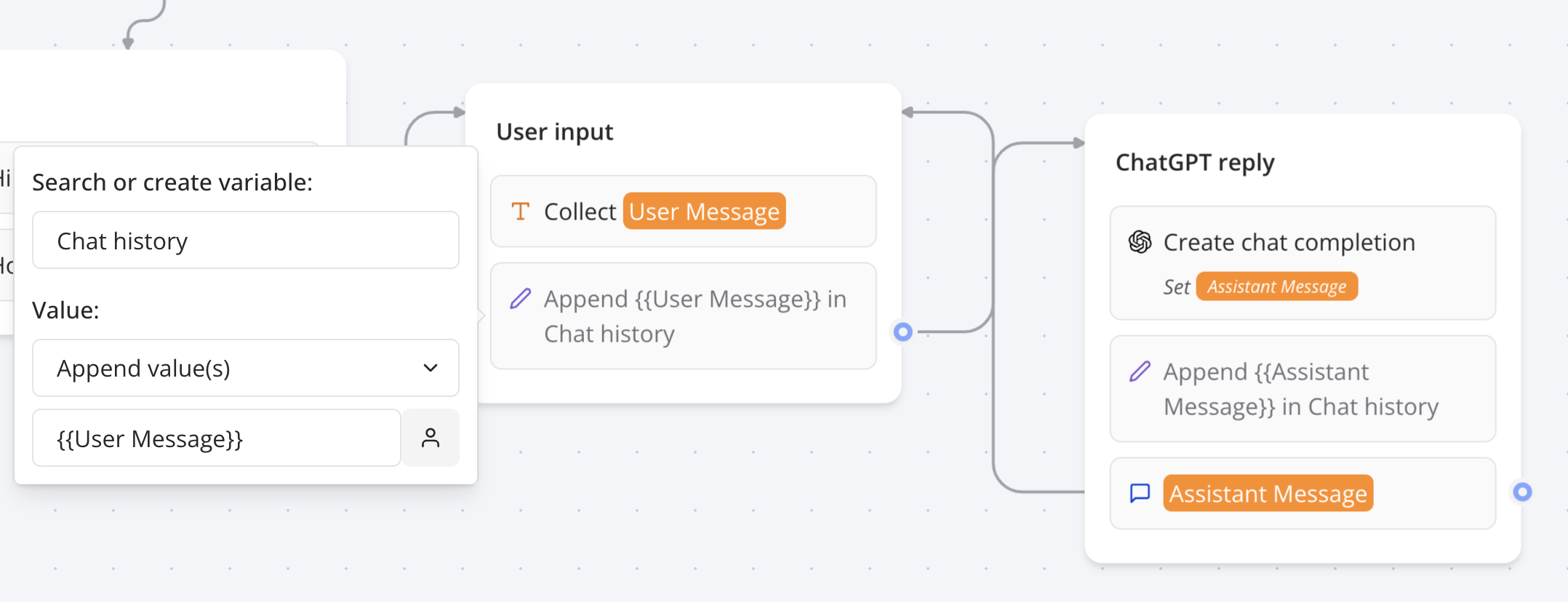
Use the Dialogue message type in the Flow Editor to manage conversation history with OpenAI.
Provide the OpenAI block with access to this message sequence:
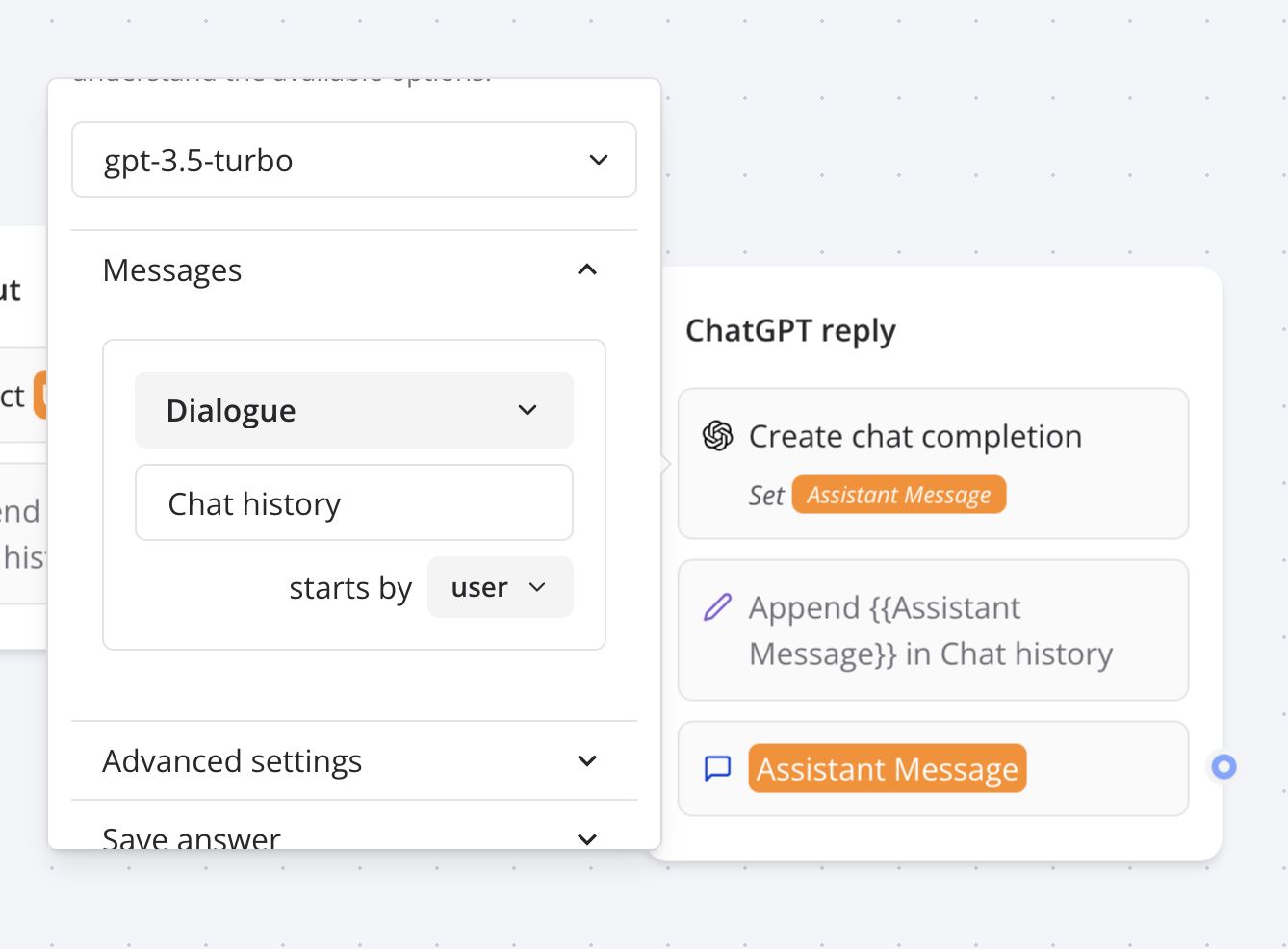
Configure the OpenAI block in the Flow Editor to access dialogue history for seamless chat completions.
Tools
The Tools section allows you to define functions for the OpenAI model to execute. For example, a getWeather function might return "Sunny and warm" for Paris or "Rainy and cold" for other cities. A more practical use case is calling an API to fetch real-time weather data for the user’s requested city.
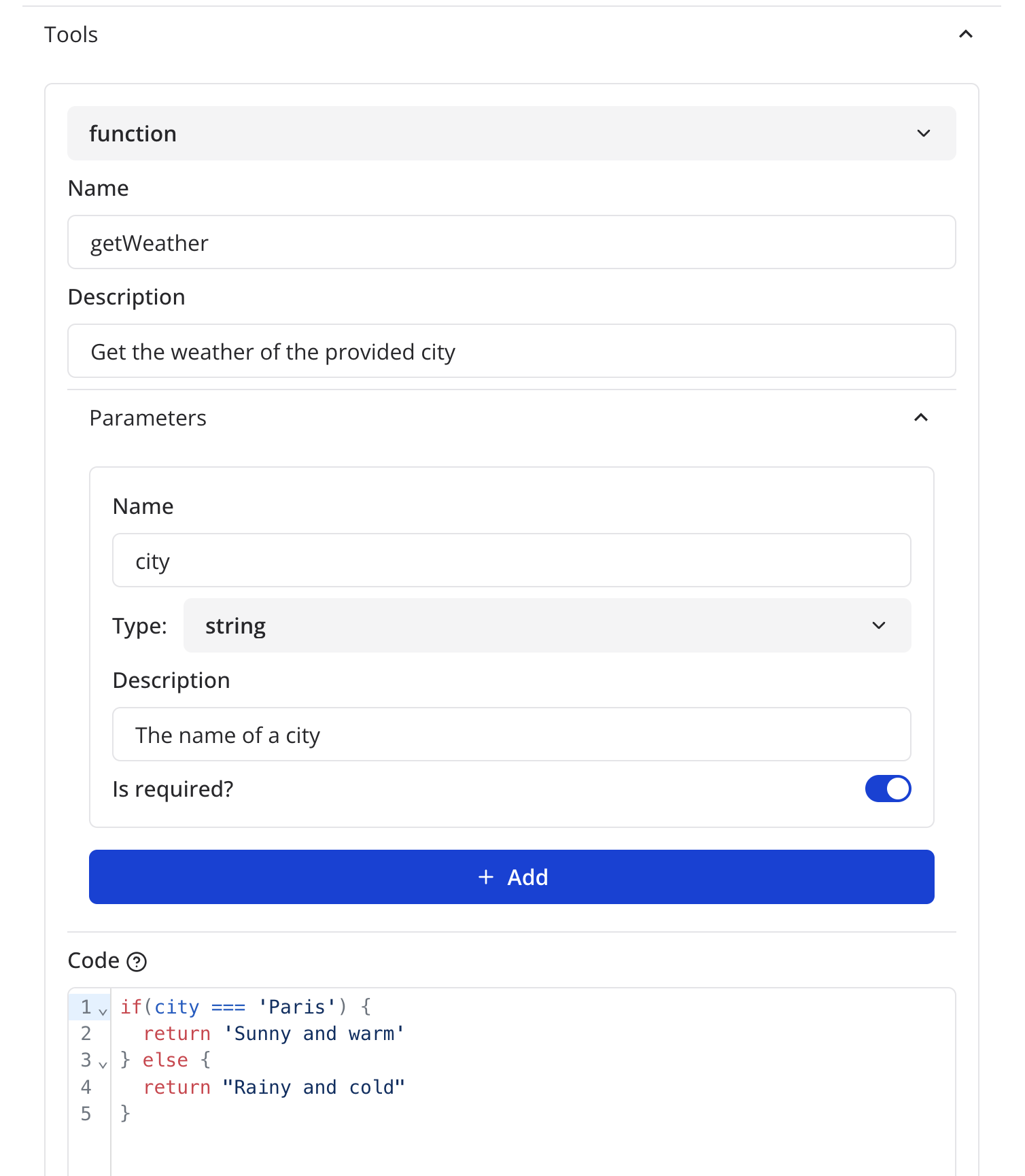
Add custom functions like getWeather in the Flow Editor to extend the OpenAI block’s capabilities.
The code block expects a JavaScript function body, using the return keyword to provide the result to OpenAI. To set variables directly, use the setVariable function.
Functions are executed on the server and subject to limitations listed here.
Ask Assistant
The Ask Assistant action enables interaction with your OpenAI assistant (opens in a new tab) by providing its ID. To maintain conversation history, specify a Thread ID variable. If empty, a new thread is created, and its ID is saved to the variable.
Configure the Ask Assistant action in the Flow Editor with an OpenAI assistant ID and Thread ID variable to manage conversations.
Functions
For assistants with defined functions, specify the function to execute in the Functions section.
Define assistant functions in the Flow Editor to enhance OpenAI assistant interactions.
Create Speech
The Create Speech action converts text input into a temporary audio URL for use in your bot.
:::note The generated audio URLs are temporary and expire after 7 days. If you need to store them, make sure to download them before they expire. :::
Use the Create Speech action in the Flow Editor to generate temporary audio URLs from text for your bot.
Create Transcription
The Create Transcription action transcribes an audio URL into text.
Transcribe audio URLs into text using the Create Transcription action in the Flow Editor.
Generate Variables
The Generate Variables action extracts specific information from a user’s message using a prompt. For example, to extract a name and email from the user’s last message, use:
Extract user's information from user's last message: "{{Last message}}"Define variables like Name and Email. If the Last Message is "My name is John and my email is john@gmail.com", the variables will be set to John and john@gmail.com, respectively.
Extract user data into variables using a prompt in the Flow Editor for dynamic bot interactions.
Using Multiple OpenAI Blocks: Tips and Tricks
This video tutorial covers key considerations for using multiple OpenAI blocks consecutively, including generating a summary and displaying authors based on a user-provided topic. It explains that streaming messages is not supported when prefixed or suffixed by text, as all blocks must compute before display. It also covers how text formatting affects messages.
Watch this video to optimize the use of multiple OpenAI blocks in your bot’s flow.
Vision Support
The Create Chat Message and Ask Assistant actions support vision, automatically detecting isolated image URLs in user messages for OpenAI processing. Example:
What's in this picture?

https://domain.com/image.png
If the selected model is not compatible with vision (opens in a new tab), the image URL is treated as plain text.
Enable vision support in the Flow Editor by including isolated image URLs in user messages for compatible OpenAI models.
Troubleshooting
Error Message: "OpenAI block returned error"
This indicates a configuration issue. Ensure:
- An OpenAI account is selected.
- At least one user message or Dialogue message is configured.
Verify your OpenAI account and message setup in the Flow Editor to resolve configuration errors.
Empty Message Returned
An empty message likely indicates you’ve exceeded your OpenAI free quota. Add a payment method to your OpenAI account to continue.
Add a payment method to your OpenAI account to resolve quota-related issues.