Buttons Input Block
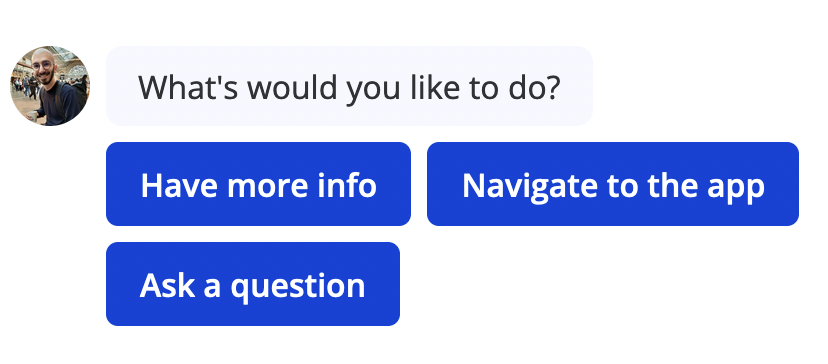
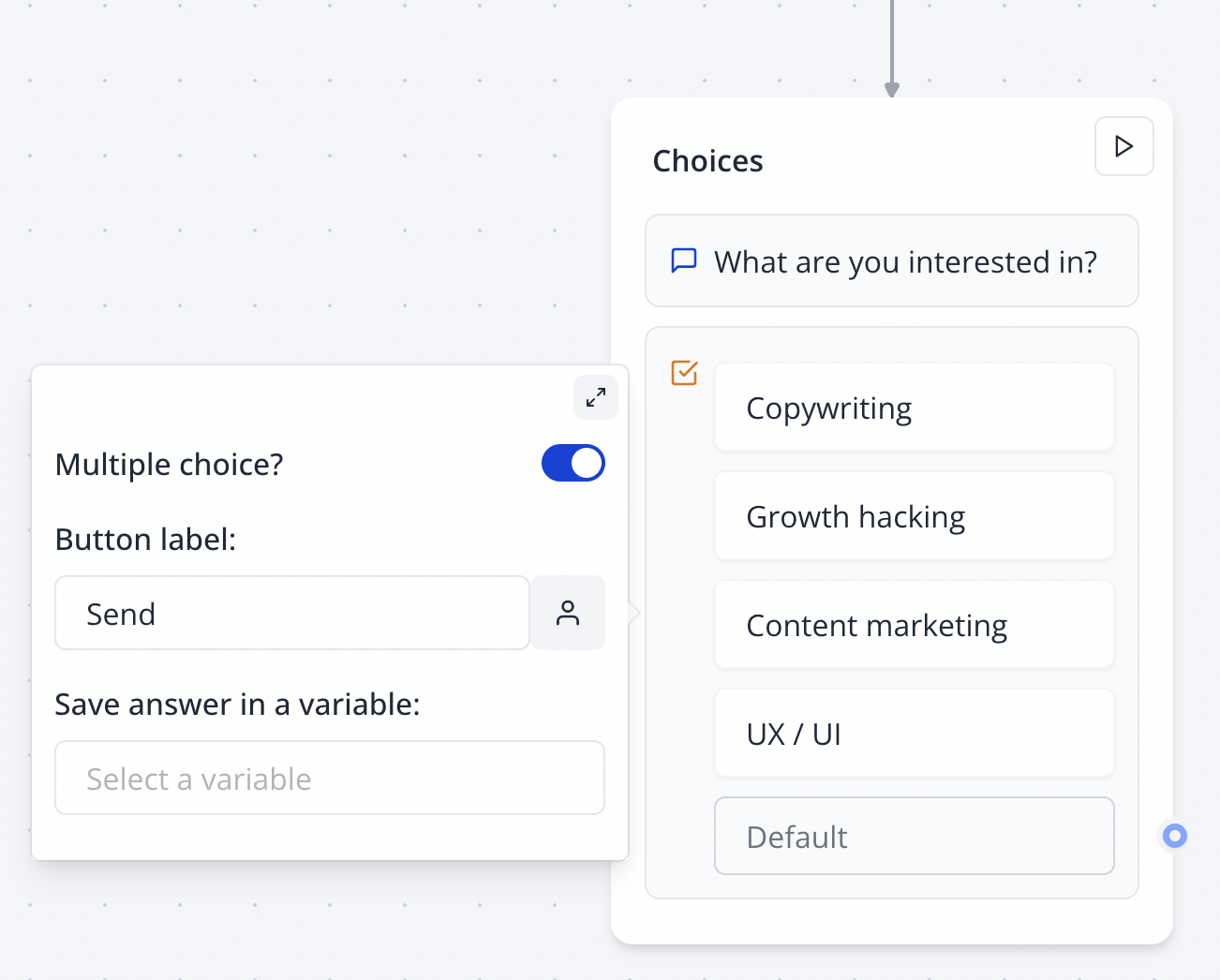
The Buttons input block allows you to offer your user predefined choices, either single choice options or multiple choices.
Single Choice
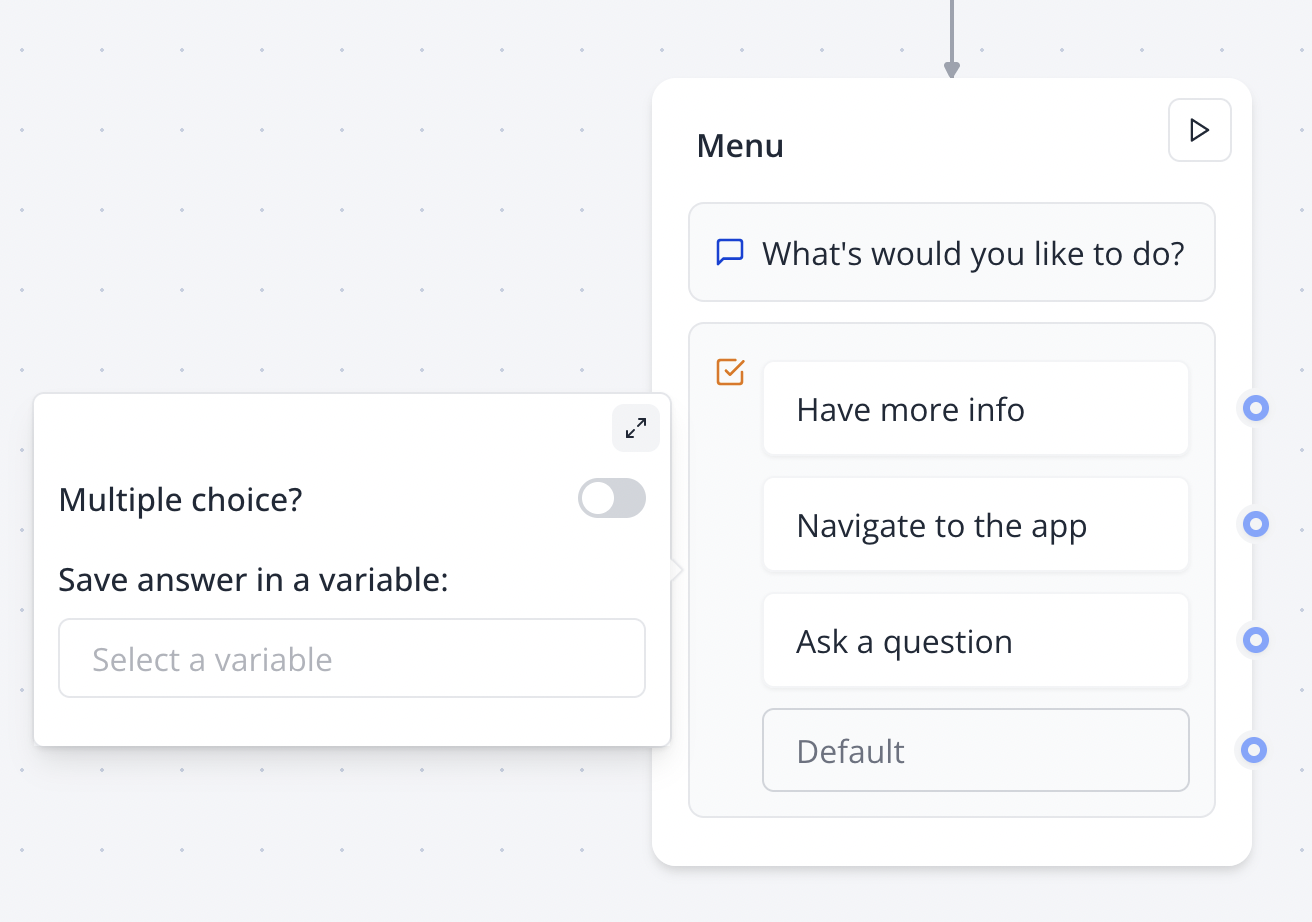
Single choice input allows you to directly split your flow depending on what the user selects by linking any choice to a specific path in your flow.
Link the "Default" item to determine the default path independent of what the user chooses.
Ensure the "Default" path is linked to handle unexpected user selections smoothly.
Flow Editor
Bot Preview
Verify image paths (/images/blocks/inputs/single-choice-flow.png, /images/blocks/inputs/single-choice-bot.png) exist in your project’s public directory.
Multiple Choices
Flow Editor
Bot Preview
Ensure the video (/images/blocks/inputs/multiple-choices-bot.mp4) is in .mp4 format for WhatsApp compatibility.
Dynamic Items
Instead of adding items manually, you can also display a dynamic list of items based on a variable.
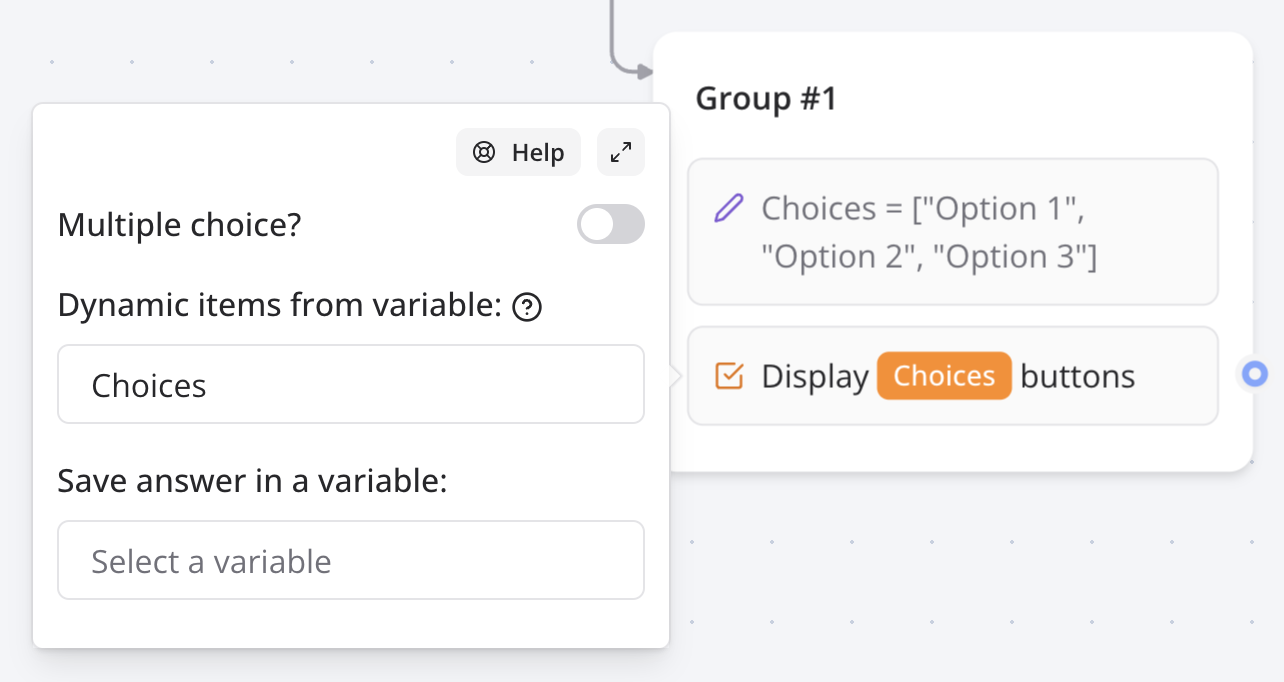
This is useful when you want to display a list of items from another data source. For this to work, you first need to make sure the variable you are using contains a list of values. This list can be extracted from an integration block like Google Sheets.
Use dynamic items with integrations like Google Sheets for adaptive button lists—see Google Sheets Guide.
Item Options
Display Condition
Allows you to conditionally display a specific button.
// Conditionally show a button based on user role
if (user_role === 'admin') {
  showButton('Manage Users');
}
Internal Value
Allows you to assign an internal value for that specific button. If your user selects this button, the internal value will be saved in the variable you've set in the Save answer option.
// Assign an internal value to a button
Button: "High Priority" → Internal Value: "urgent"
How To
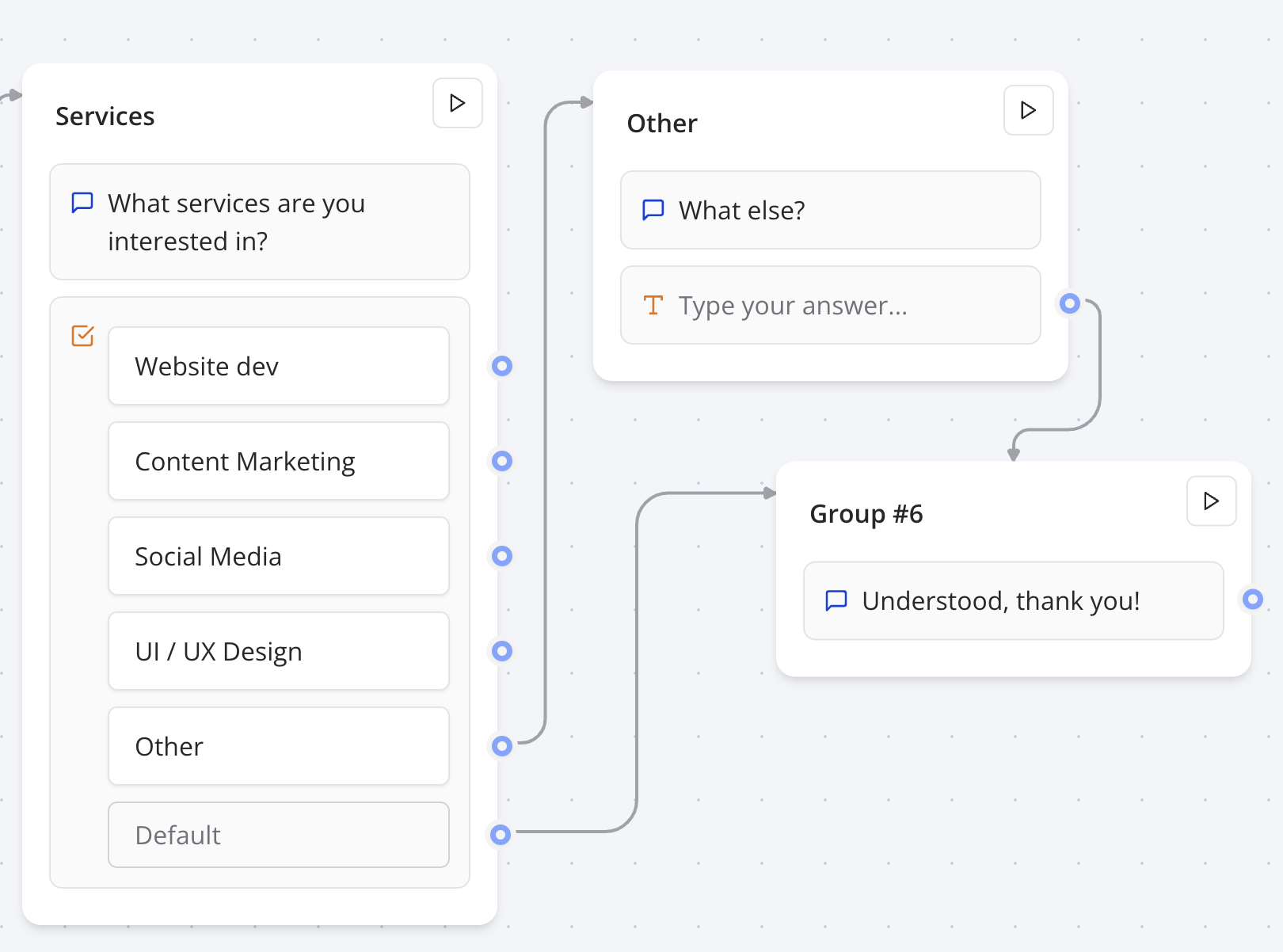
Add an "Other" Button
Sometimes you want to allow your user to enter a value that is not in the predefined choices. You can do this by adding an "Other" button and connect it to a "Text" input block.
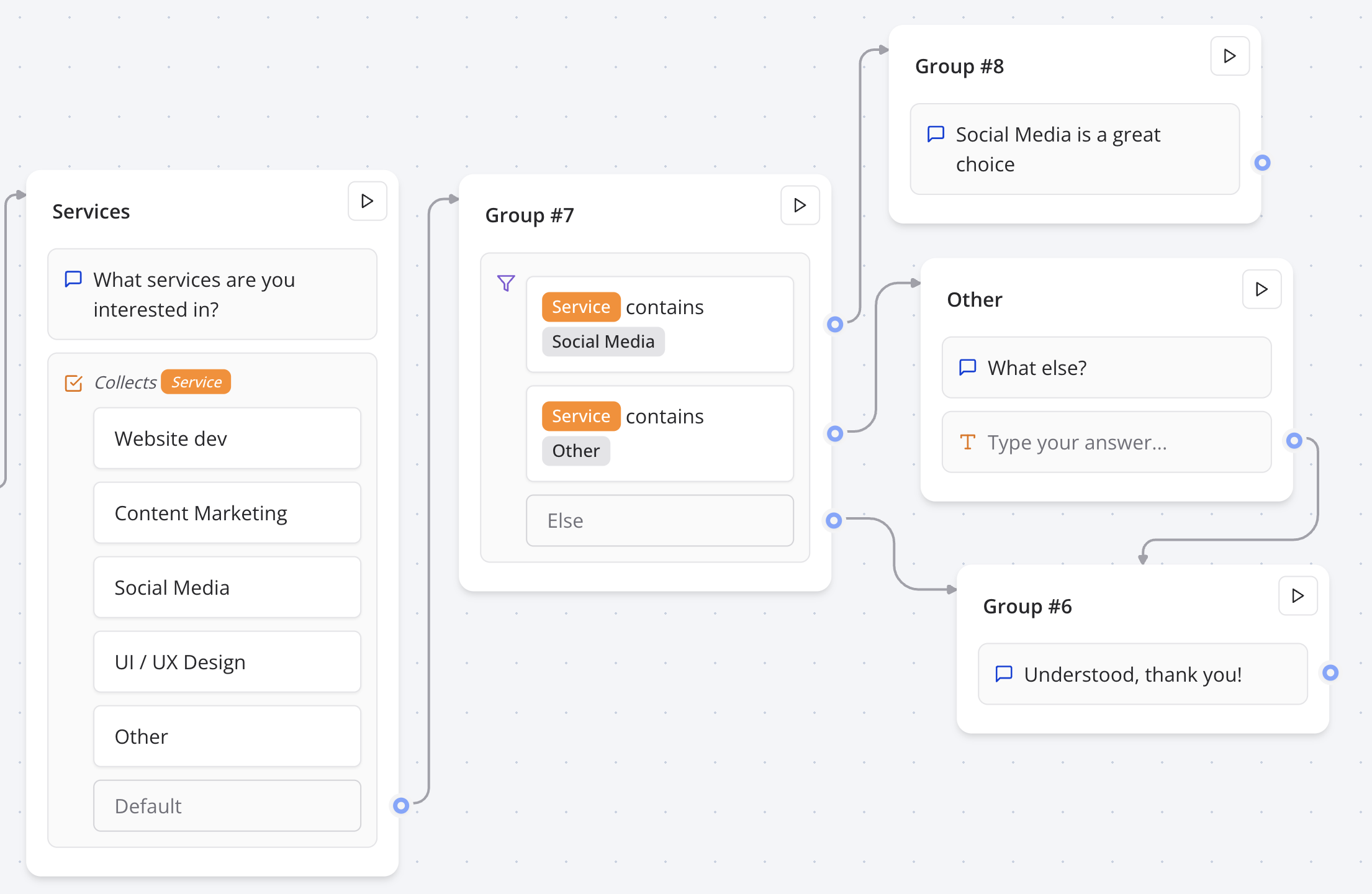
Different Replies Based on Multiple Choices
If you'd like to have different replies based on the multiple choices the user selects. You will need to
- Save the answer into a variable.
- Add a "Condition" block
- Add comparisons based on the value of this variable
Test condition logic in the Indite editor’s preview mode to ensure accurate branching for multiple-choice selections.