Deploy your bot on your preferred platform by navigating to the Share tab in your bot’s dashboard. This tab provides tailored instructions for each integration method, ensuring a seamless embedding process.
Browse Integrations by Category
The Share tab lists every deployment integration in a searchable gallery. Use the search box to find a platform by name, or narrow the list with the category filters: All, Messaging, CMS, Frameworks, Analytics, and Other.
| Category | Integrations |
|---|---|
| Messaging | WhatsApp, Telegram |
| CMS | WordPress, Shopify, Wix, Notion, Webflow |
| Frameworks | HTML & JavaScript, React, Next.js, FlutterFlow, Framer |
| Analytics | Google Tag Manager |
| Other | API, Script, Iframe |
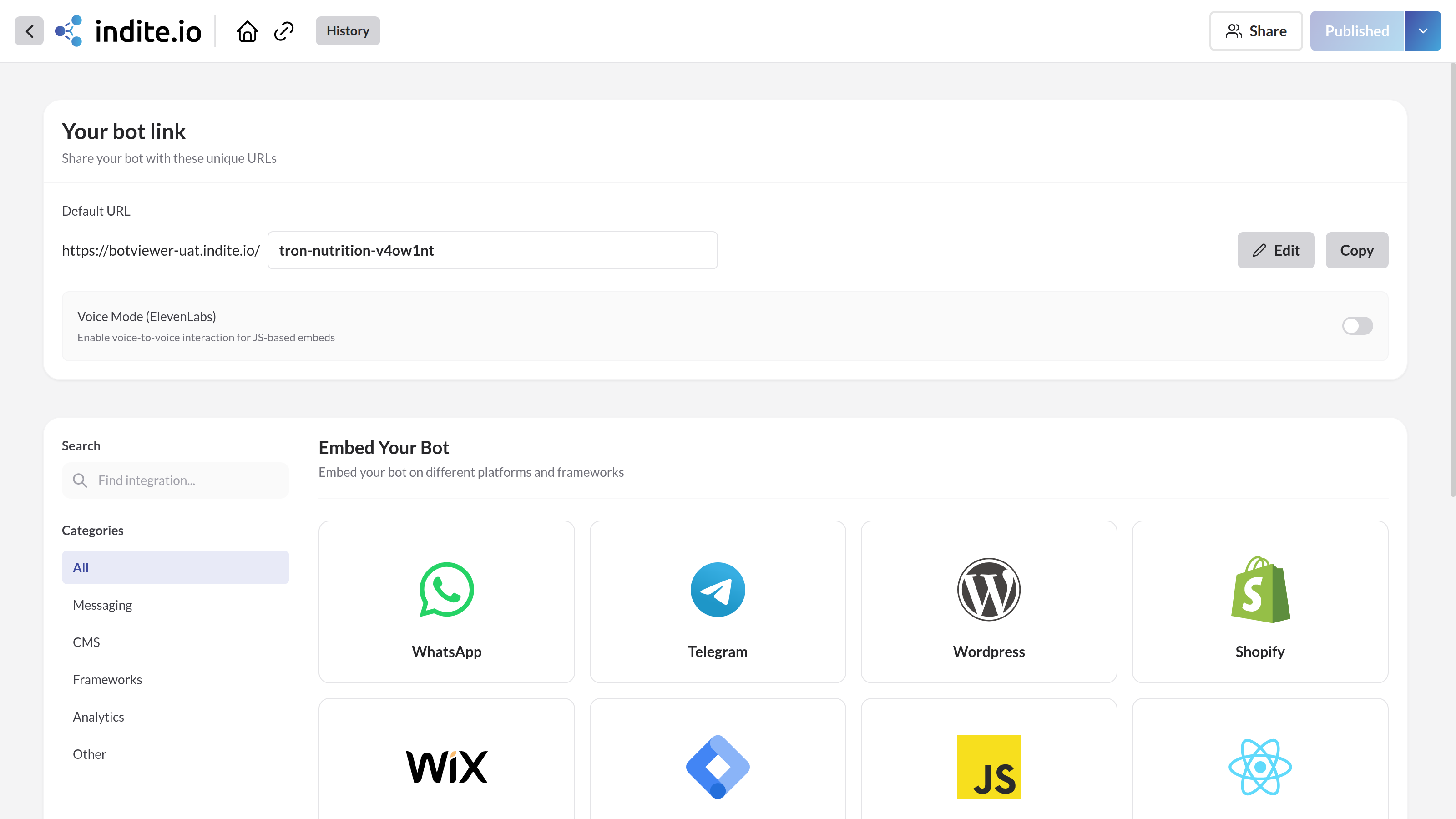
Selecting an integration opens a step-by-step setup dialog with copy-ready snippets for that platform.
Embed Types
Whichever platform you choose, you can embed your bot in three primary ways: Standard, Popup, or Bubble. Each method offers unique advantages depending on your website or application’s needs.
Standard
The Standard embed places your bot within a customizable container, allowing flexible integration anywhere on your website or app. This method is used on the Bot homepage for a full-page experience.
<iframe
  src="https://indite.io/embed/my-bot"
  width="100%"
  height="100vh"
  frameborder="0"
  style="border-radius: 8px;"
></iframe>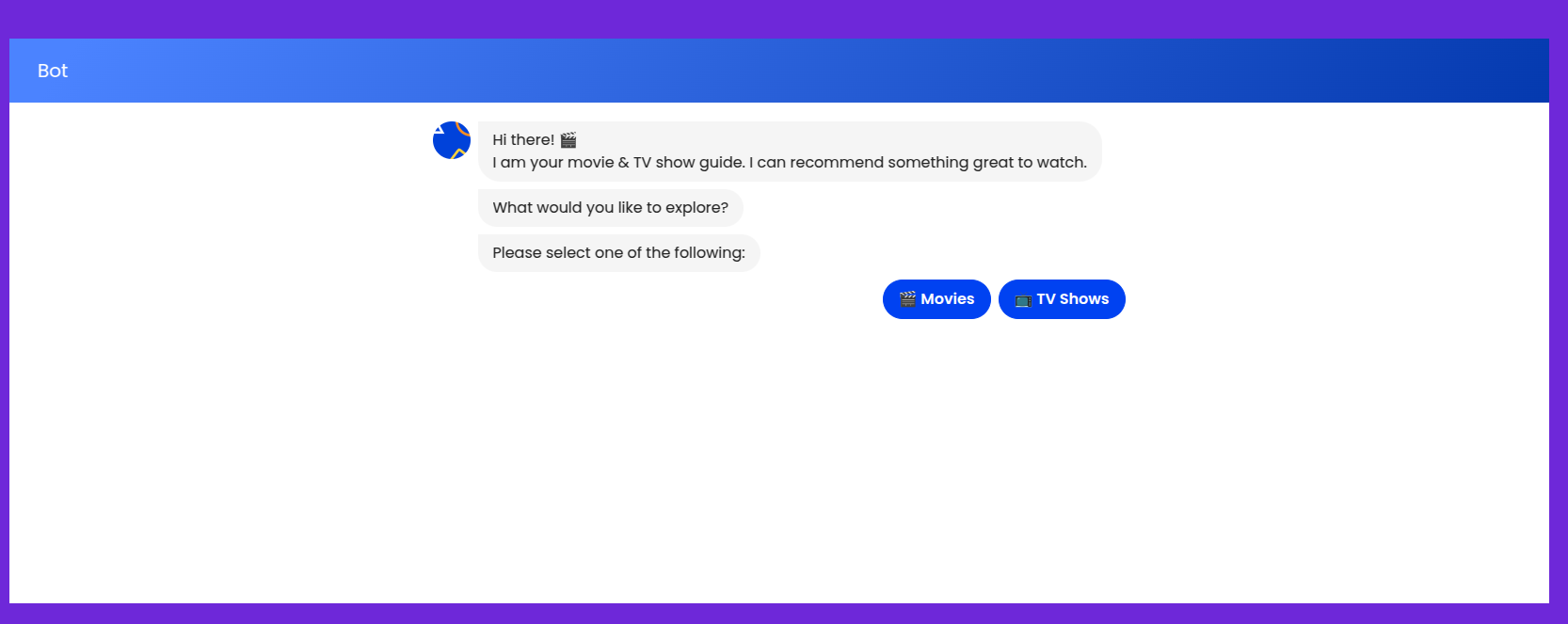
For a full-page experience, set the width to 100% and the height to 100vh. Adjust dimensions as needed to fit your layout.
Popup
The Popup embed displays your bot in an overlay window above your website’s content. You can configure the popup to open automatically after a specified delay or trigger it manually (e.g., via a button click).
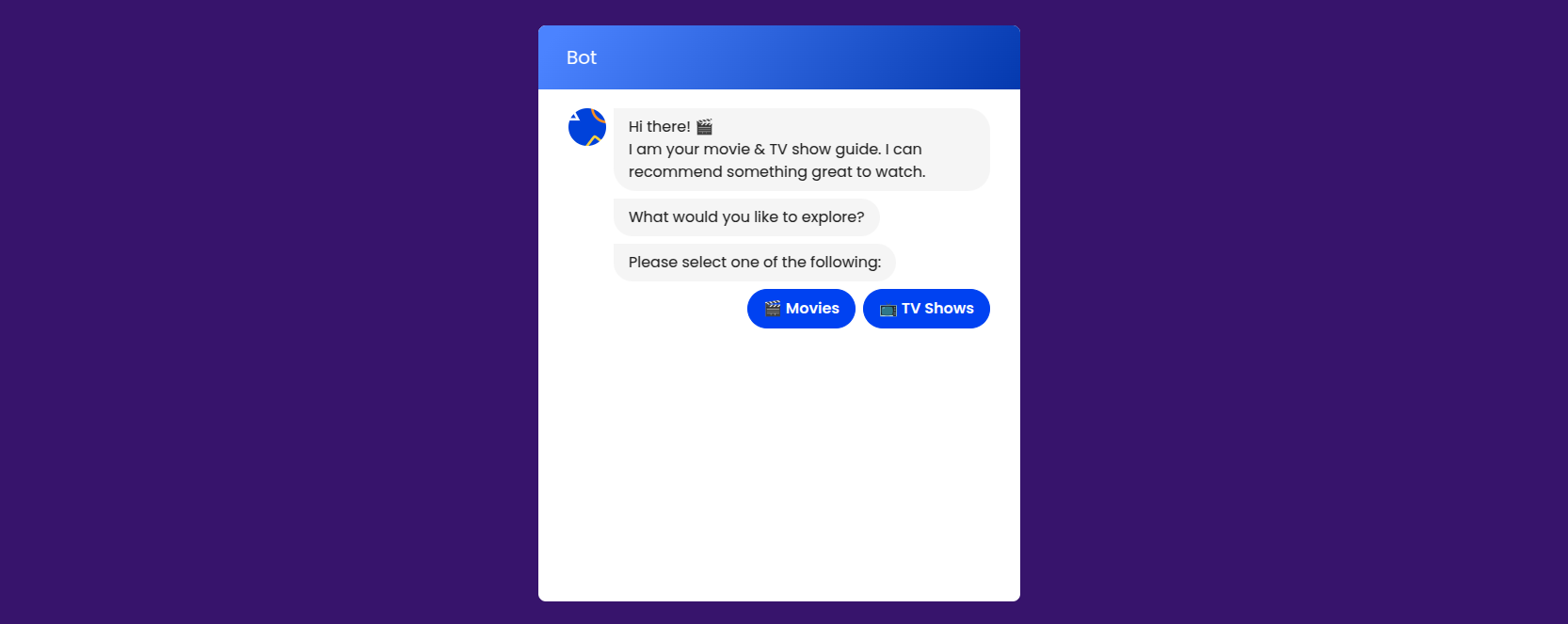
Use the autoShowDelay property in the Popup configuration to control when the popup appears. See the HTML & JavaScript Guide for details.
Bubble
The Bubble embed presents your bot as a floating chat bubble, typically positioned in the bottom-right corner of your site. It can open automatically, on user interaction, or display a proactive preview message to engage visitors.
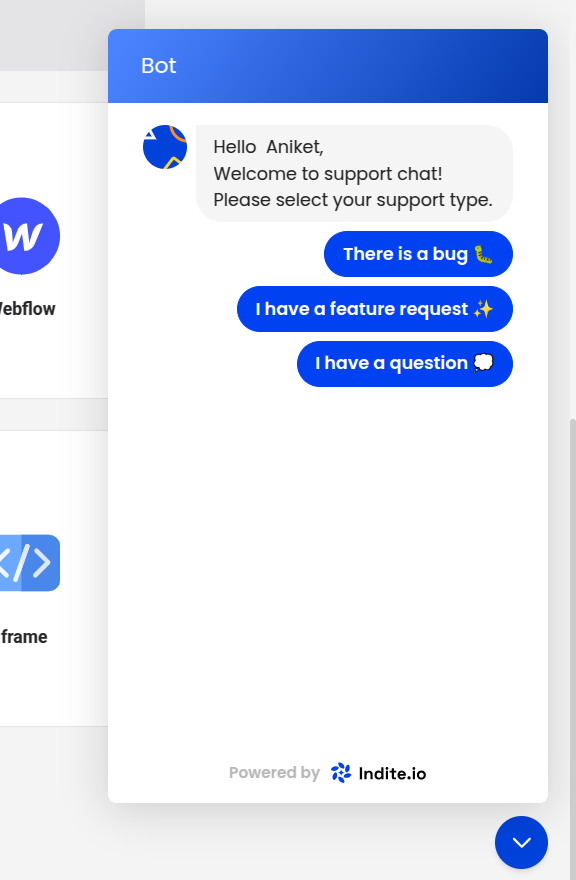
Customize the bubble’s appearance and behavior, such as preview messages and positioning, using the theme and previewMessage properties. Refer to the HTML & JavaScript Guide for configuration options.